Prerequisites: the TSC Immo support module and Odoo Helpdesk installed, an email domain configured in Odoo. Profile: rental manager.
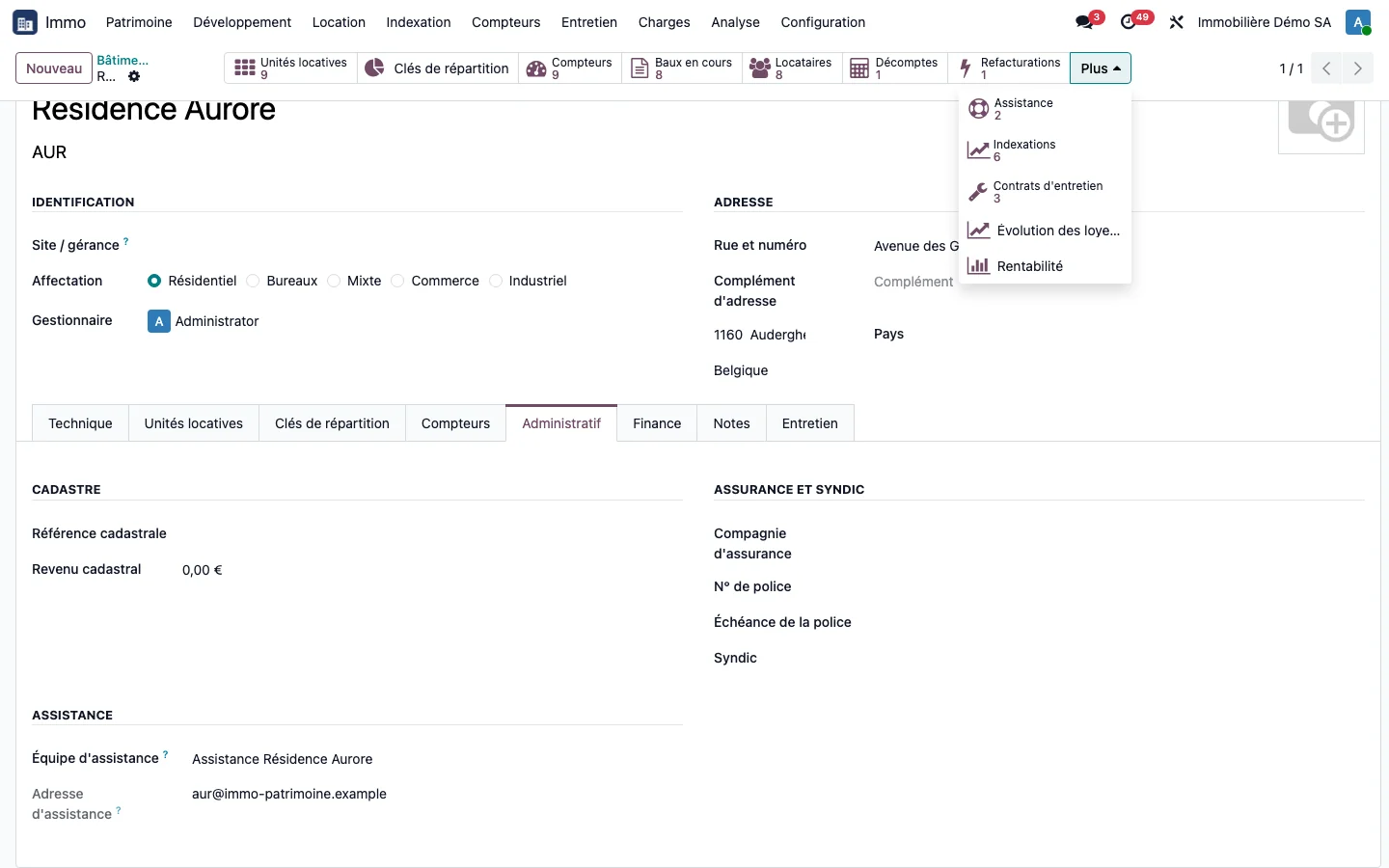
Step 1 · Create the building's team
Open a building, Administrative page, Support block, and click Create support team. The team is created with an email address derived from the building code, shown on the record.
Step 2 · Receive a request
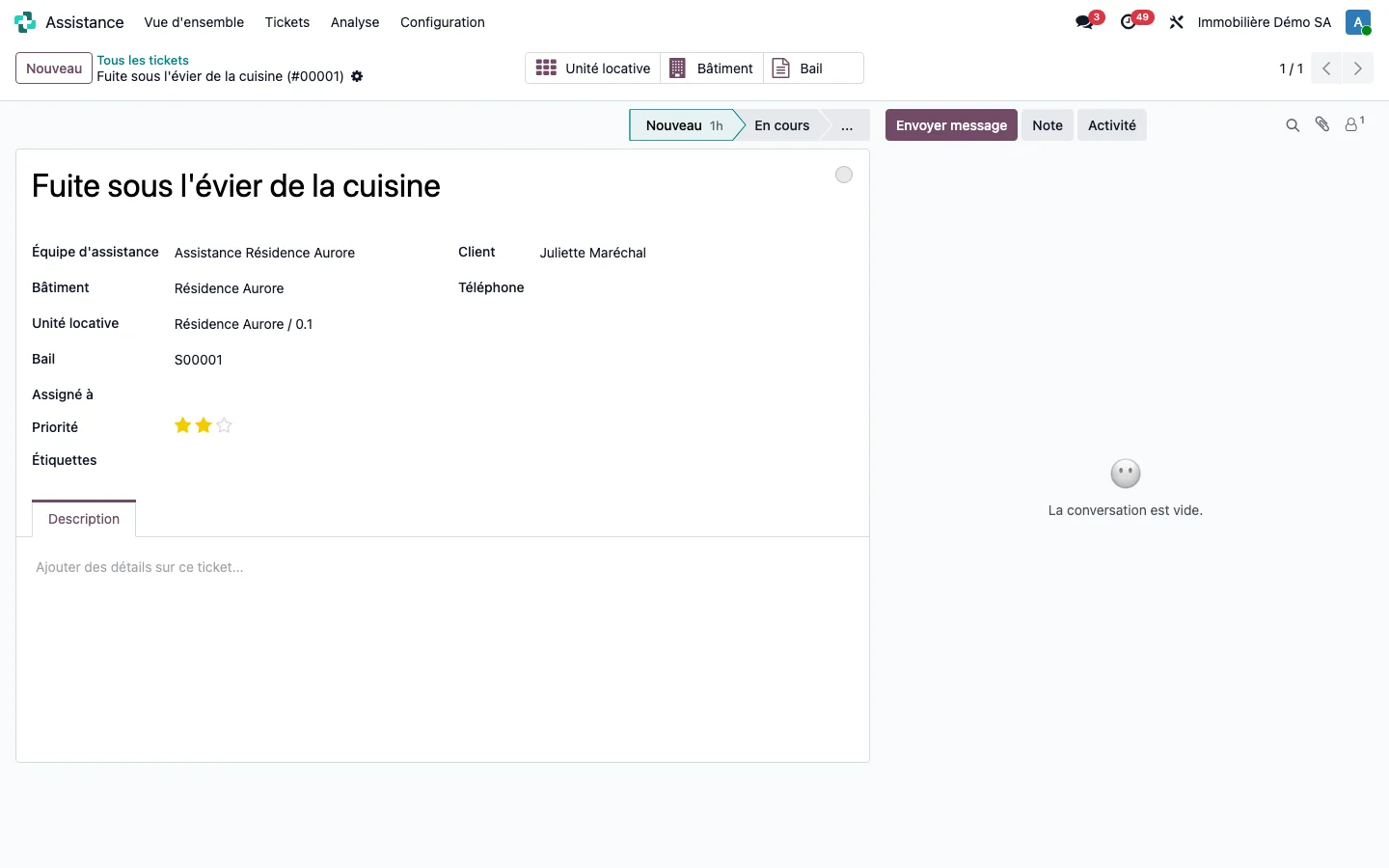
An email sent to this address creates a ticket. It is linked to the building, and to the unit and the lease when the sender is a known tenant with a single current lease. Otherwise, these fields remain empty.
Step 3 · Handle the ticket
Open the ticket. The Building, Rental unit and Lease fields are filled in, and the Rental unit, Building and Lease buttons open the tenant's context without a search.
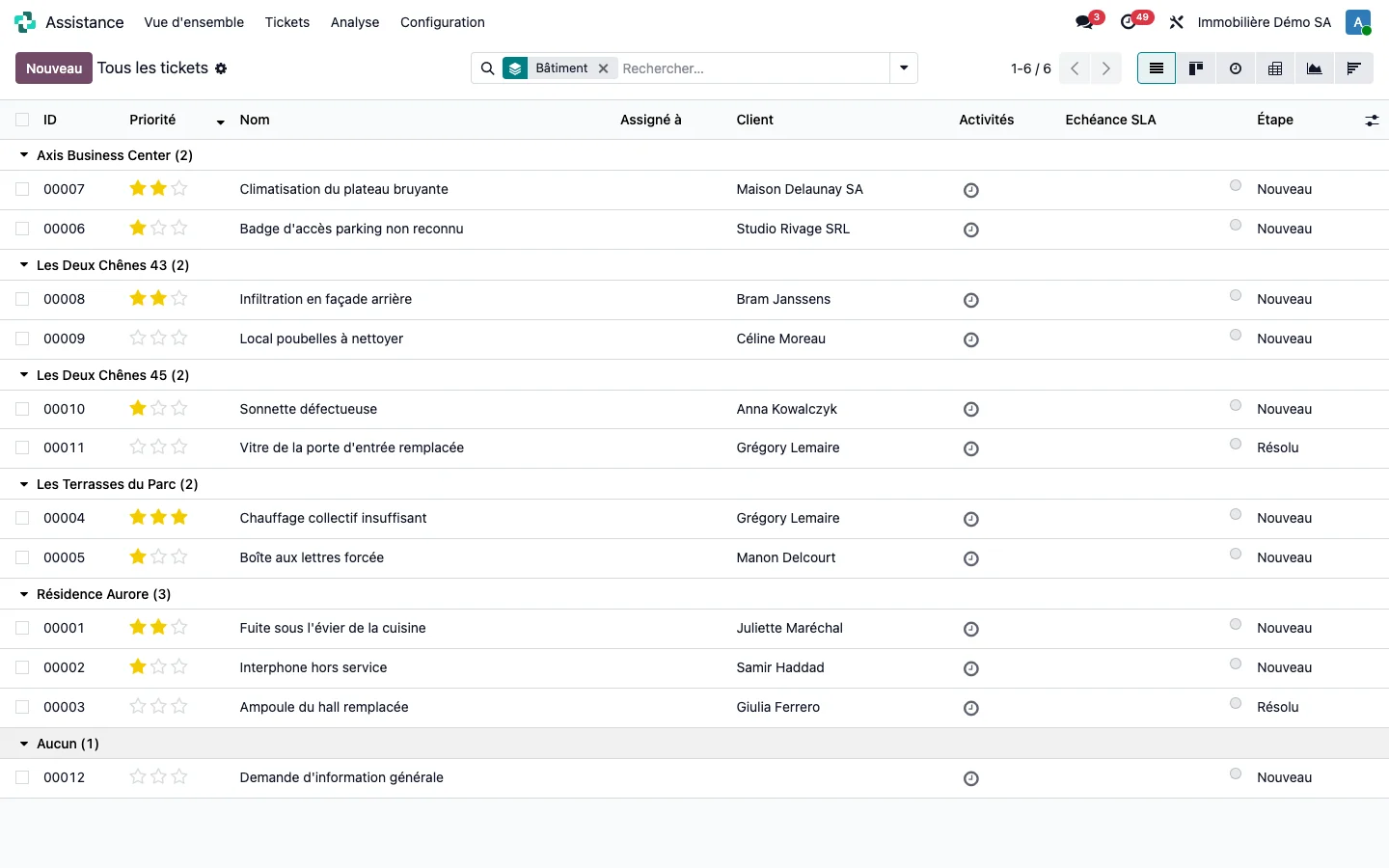
Step 4 · Track by building
The Support button on the building record (under More when the bar is full) counts and opens the tickets to be handled. The full history can be read in Support > Tickets > All tickets, grouped by Building.
Step 5 · Open a vendor ticket
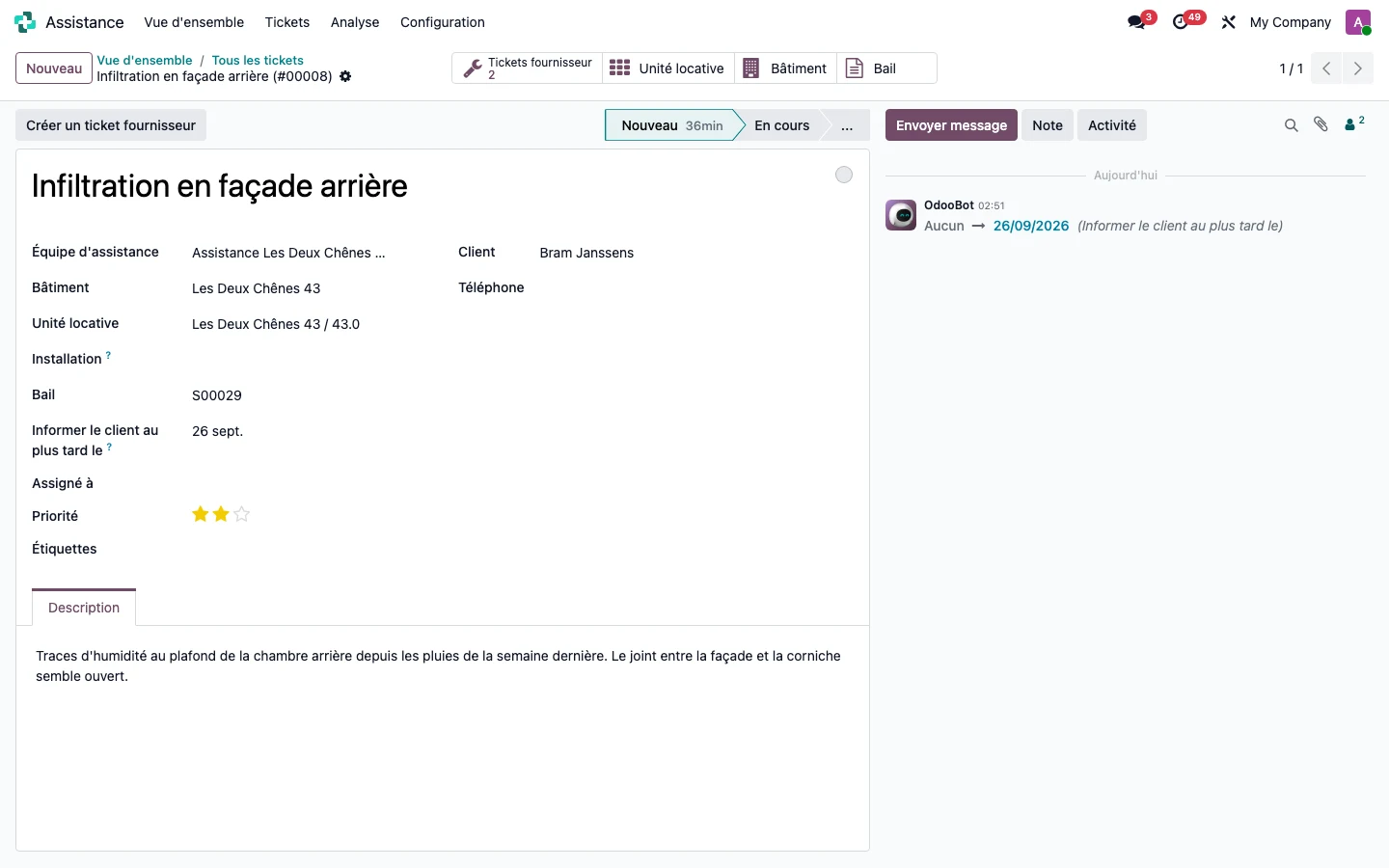
Open the tenant's ticket (Support > Tickets > All tickets). The Create vendor ticket button is at the top, and the Vendor tickets button counts those already open for this request. The Inform the customer by field carries the deadline towards the tenant, set on receipt according to the team's deadline.
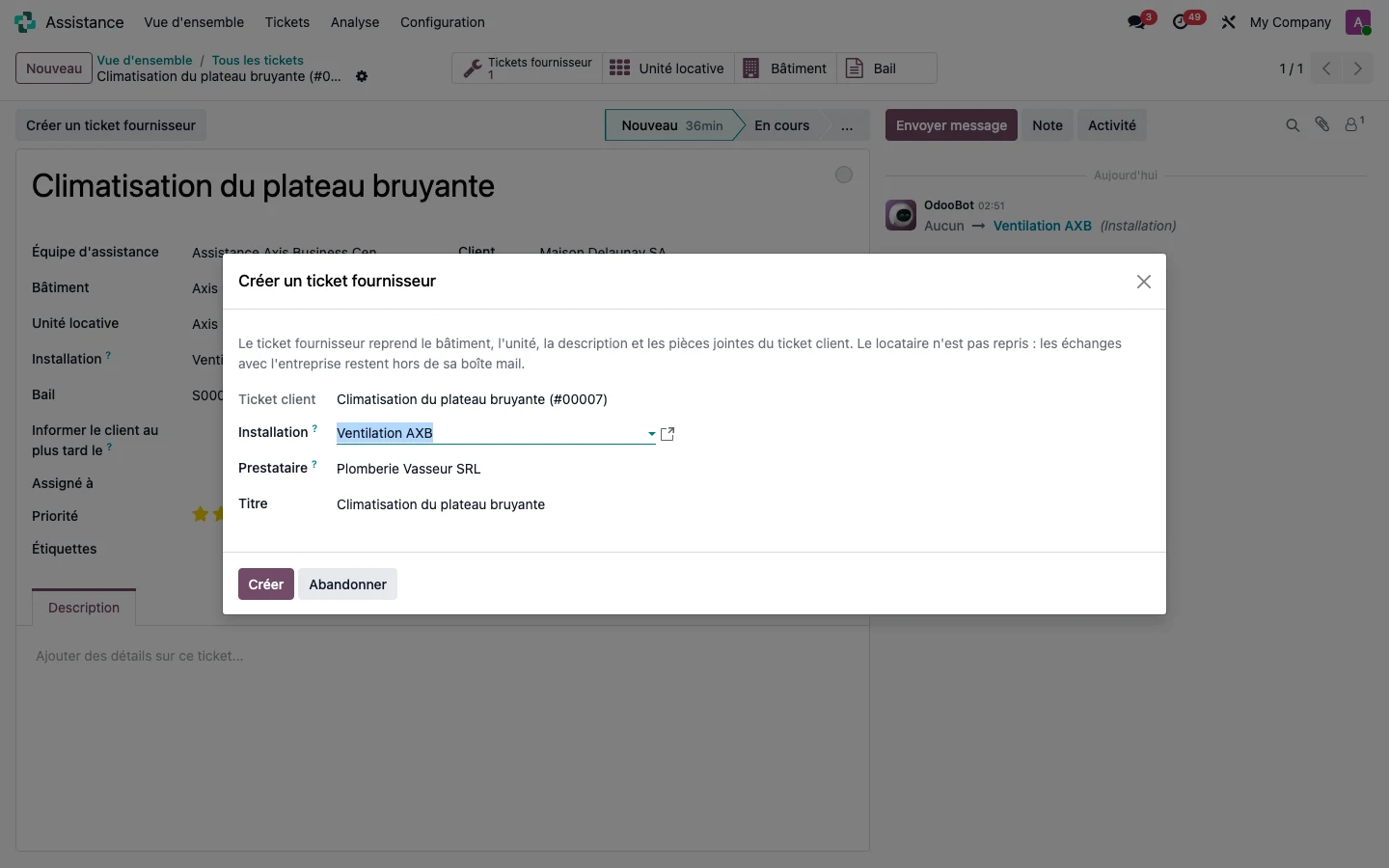
The button opens a wizard. The vendor ticket carries over the building, the unit, the description and the attachments, but not the tenant. When the request is linked to an installation, the wizard suggests the company under contract for that installation: this is the contact on the maintenance record, and there is no second directory of service providers.
Step 6 · Track the follow-up
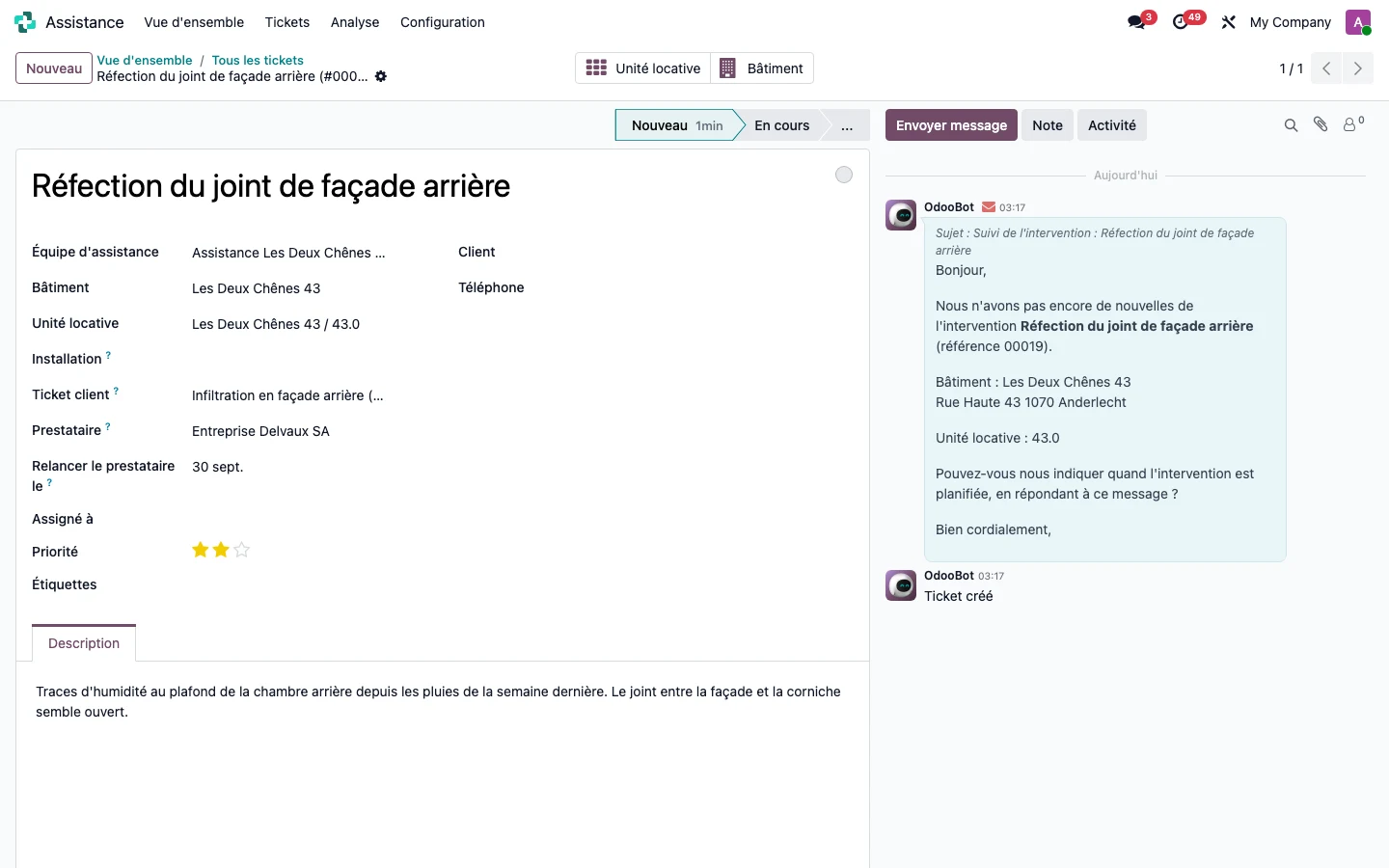
The vendor ticket shows the Customer ticket it depends on, the Service provider and the Chase the service provider on date. When this date has passed and the ticket is still open, the overnight scheduled action writes to the company from the ticket, once per due date: the message is in the history, with its subject and recipient. A company without an email address is not marked as chased. To write to the company yourself, use Send message from the vendor ticket: its reply comes back into the same ticket.
Step 7 · Read the outstanding items by service provider
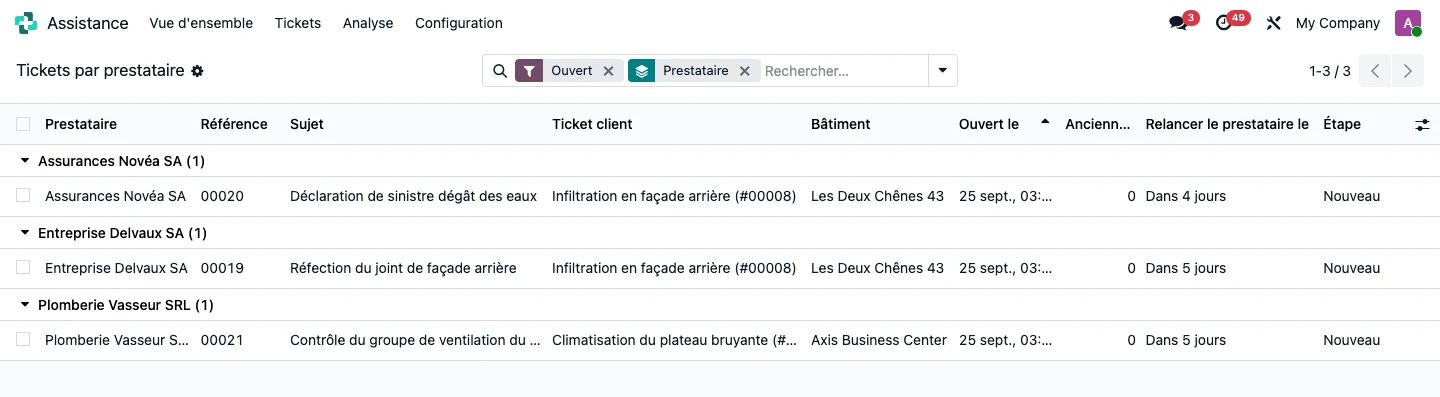
Open Support > Tickets > By service provider. Open vendor tickets are grouped by company, with the original request, the building, the opening date, the age in days and the next reminder. The Service provider chase overdue filter isolates those that need to be chased today.
Step 8 · Set the two deadlines
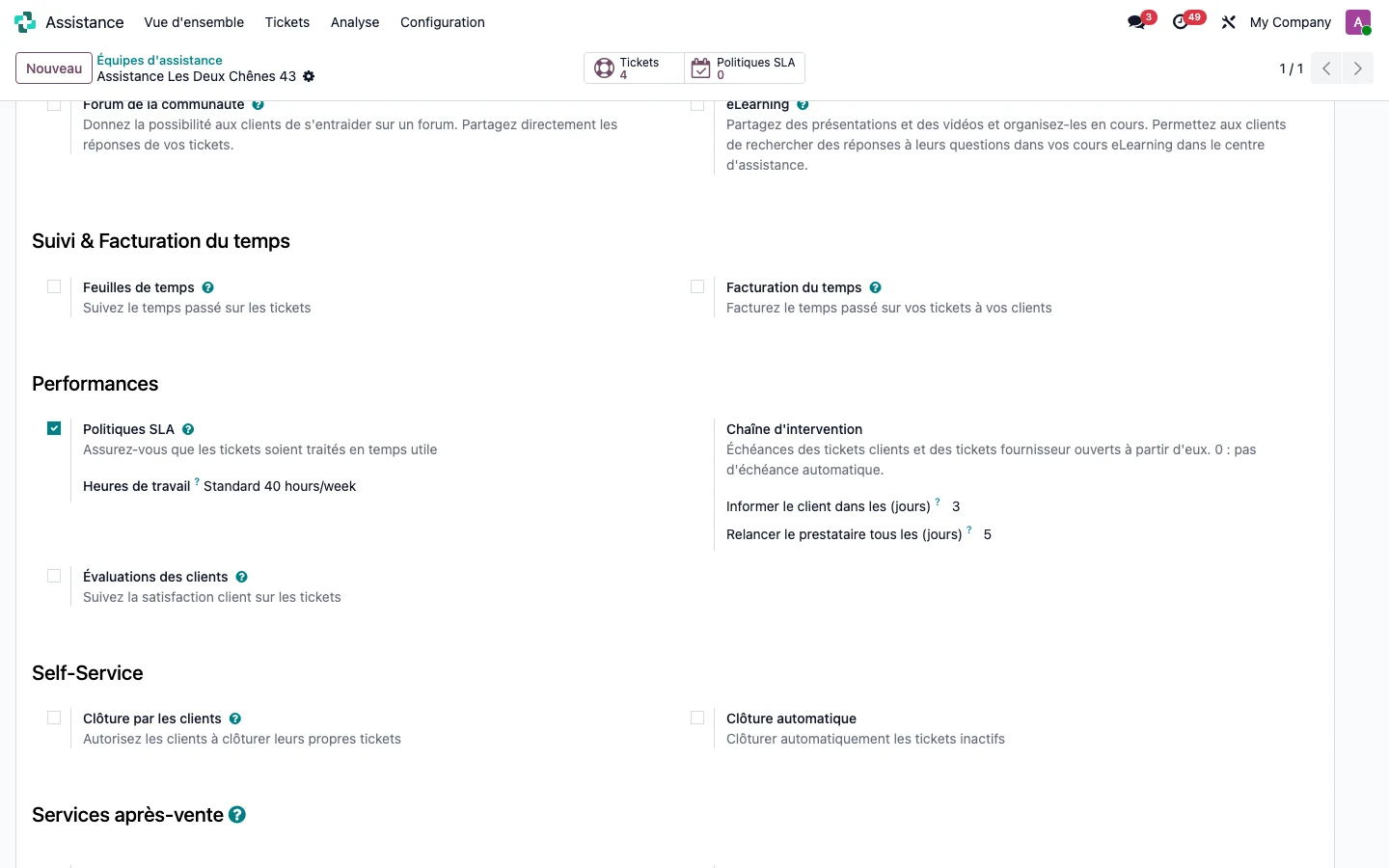
Open Support > Configuration > Support teams, then the building's team. The Intervention chain block, under Performance, carries two deadlines in days: informing the customer and chasing the service provider. At zero, no due date is set automatically; the dates can still be changed ticket by ticket.
Step 9 · Decide on closing
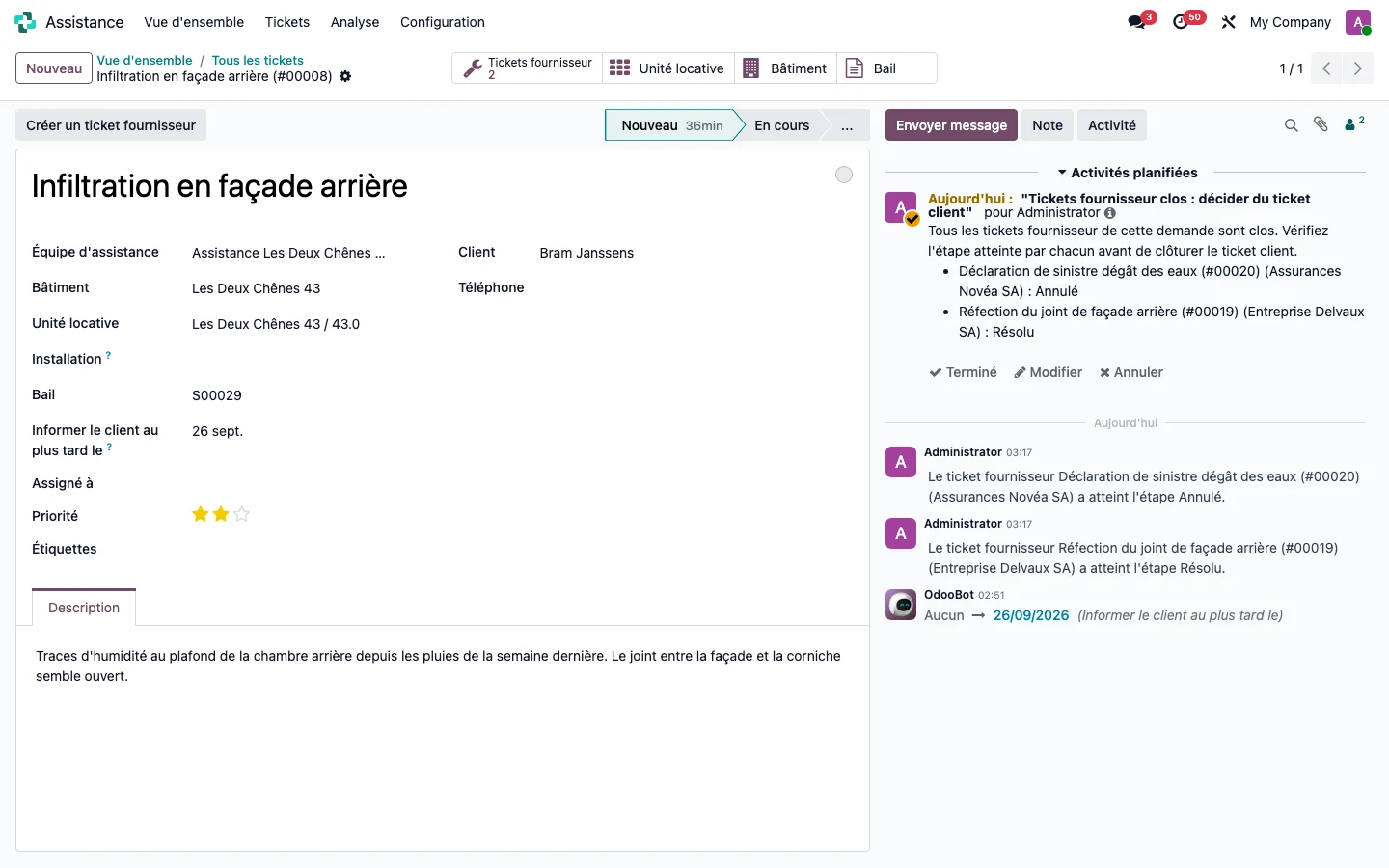
Each vendor ticket that is closed leaves a note on the tenant's ticket. When all of them are, an activity Vendor tickets closed: decide on the customer ticket is assigned to the person in charge, failing that to the building's property manager, and it cites the stage of each ticket (Solved or Cancelled). The tenant's ticket remains open: it is for you to decide. Closing the tenant's ticket never affects the vendor tickets.