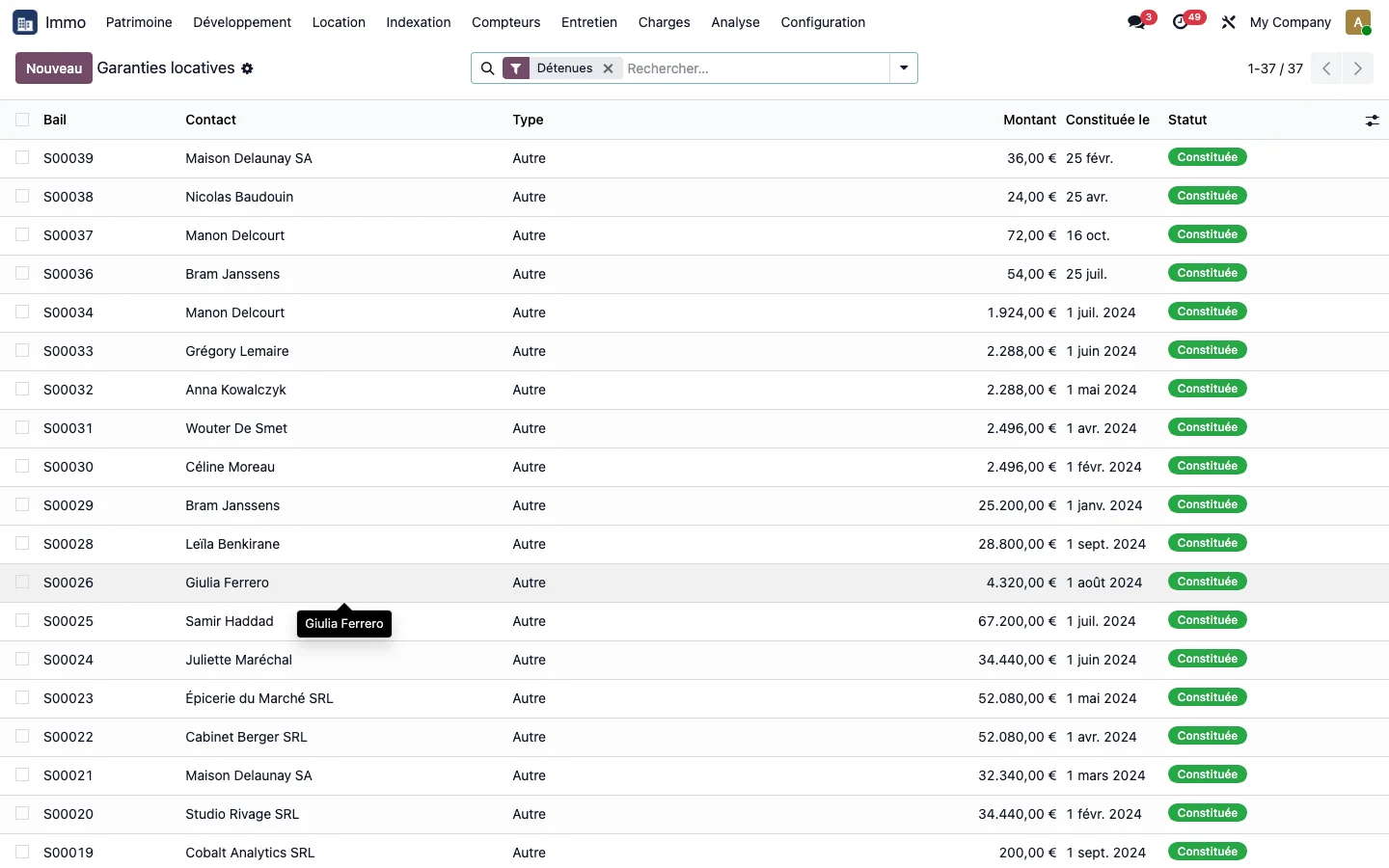
Required profile: rental manager.
Step 1 · Check the lease types
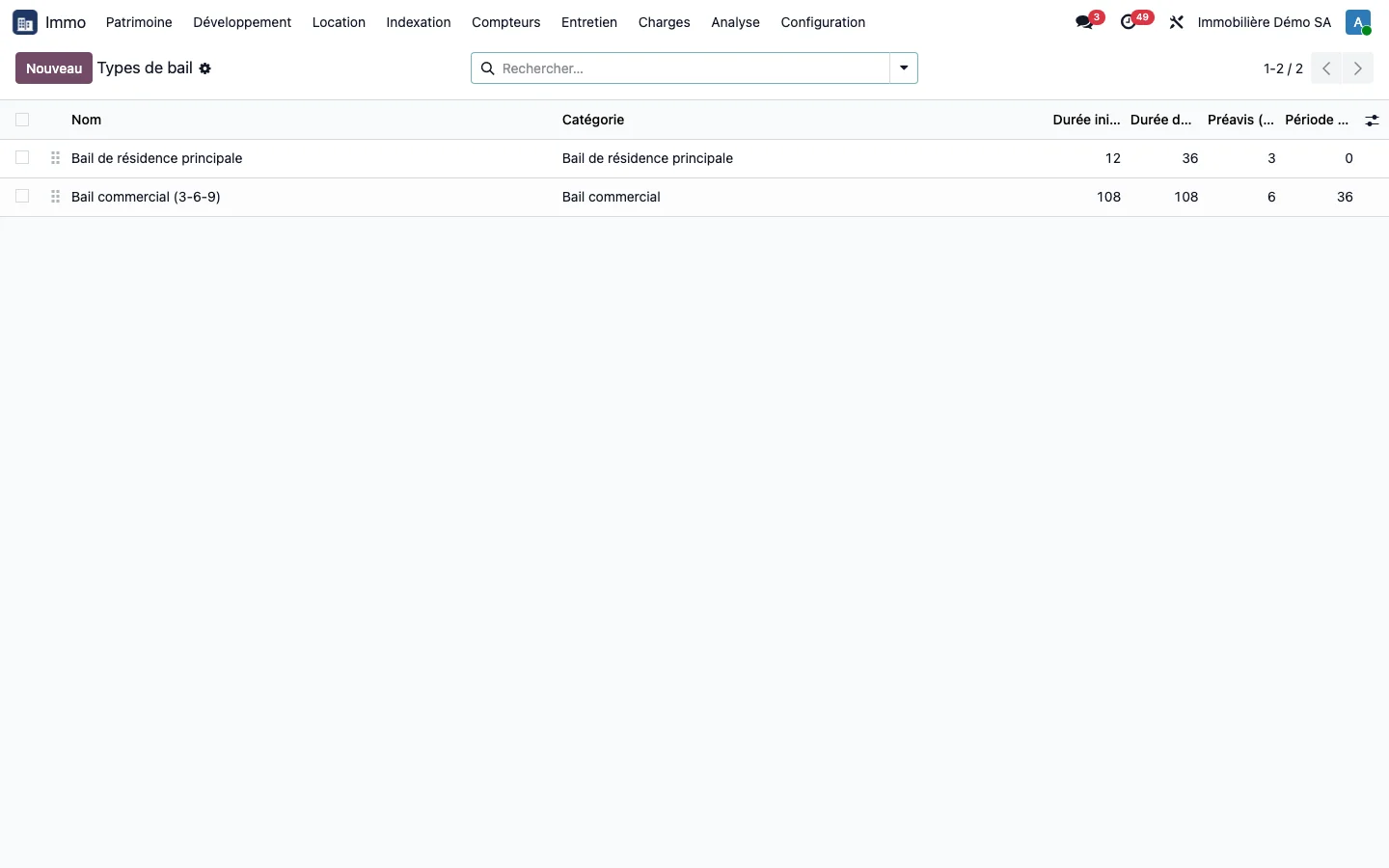
Open Immo > Rental > Lease types. Each type carries its initial term, renewal term, notice period in months and review period. Two types are supplied: the main residence lease and the 3-6-9 commercial lease. A 3-6-9 commercial lease has three-yearly break dates without any change to its term.
Step 2 · Read leases by status
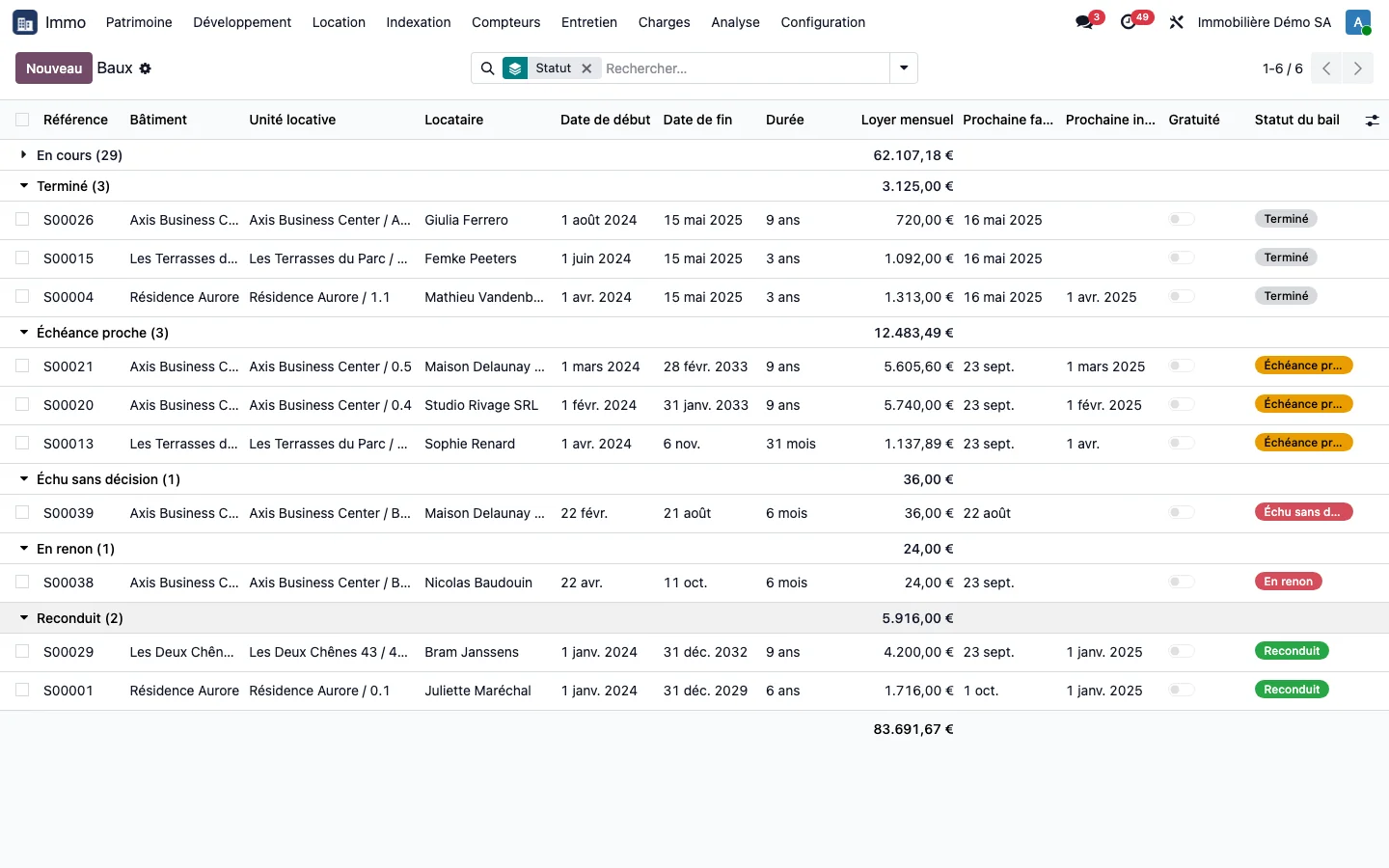
Open Immo > Rental > Leases. Each lease has one of eight business statuses: draft, running, nearing expiry, under notice, renewed, expired without decision, closed early, ended. The filters “Under notice”, “Nearing expiry” and “Expired without decision” isolate the leases to process, while “Running” and “Closed” group them together. To see the whole portfolio by status, group by Status.
Step 3 · Read a lease record
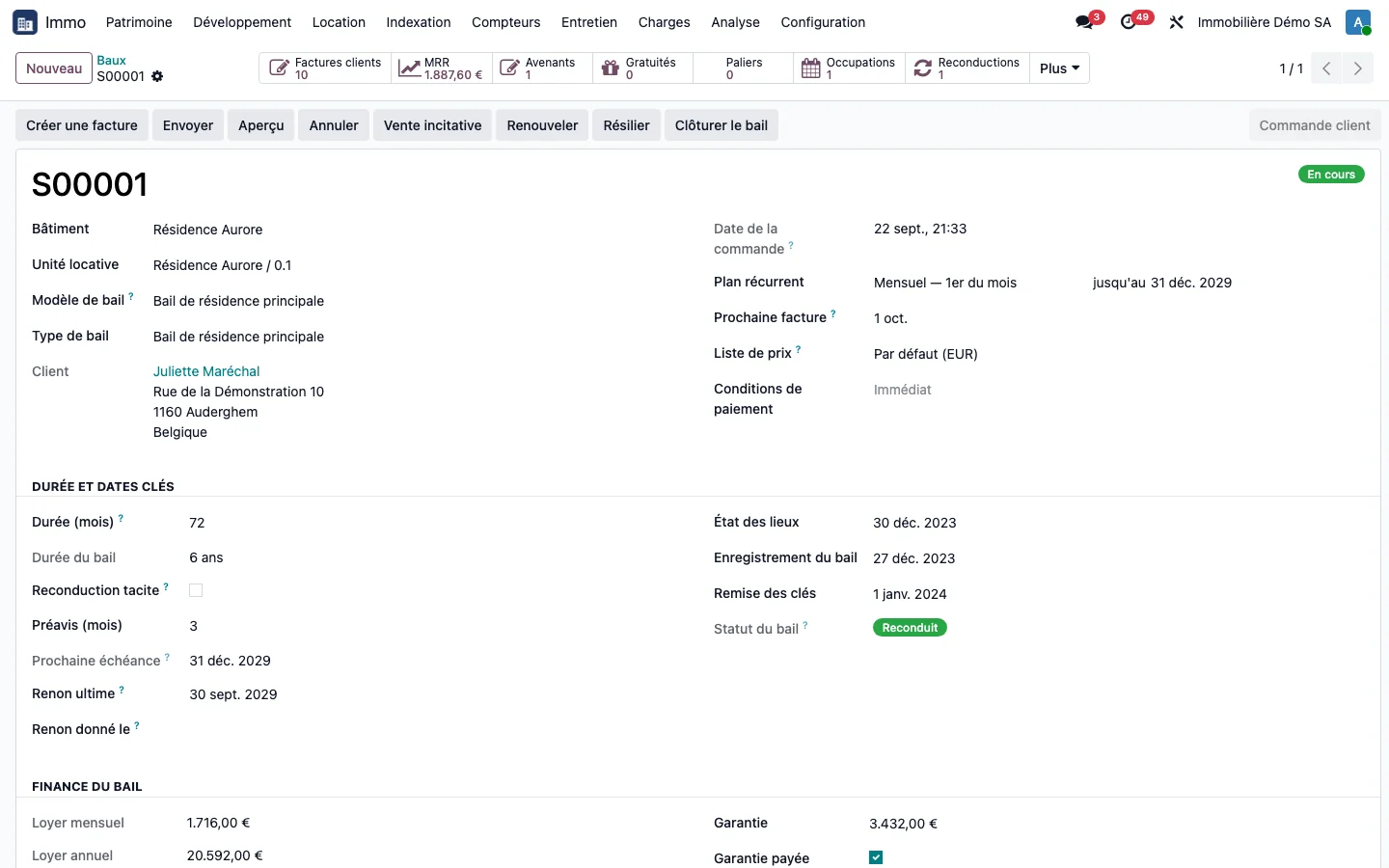
Open a lease. The header shows the building, the rental unit, the lease type and the tenant. The Term and key dates section gives the term, the notice period, the next expiry date, the calculated final notice date, the inventory and condition report, registration, the handover of keys and the lease status. The Lease finance (monthly and annual rent, rental deposit) and Indexation sections follow. The buttons at the top open the invoices, lease amendments, rent-free periods, rent steps, occupancies and renewals; the More menu gives the unit, the building and the indexations. The tabs at the bottom cover rent-free periods, rent steps, occupancies, lease amendments, service charge advances and statements, and indexations.
Step 4 · Add a rent step or a rent-free period
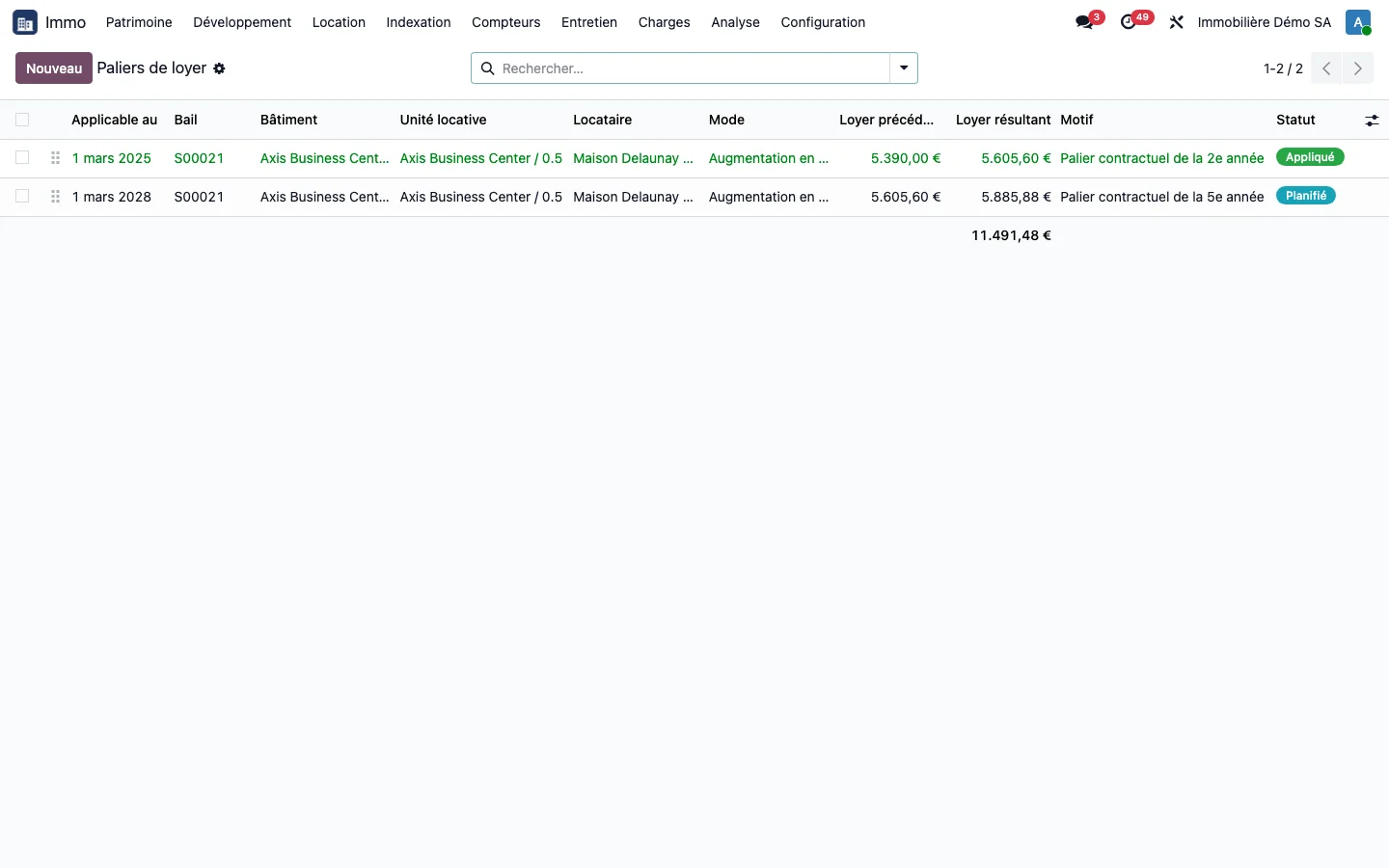
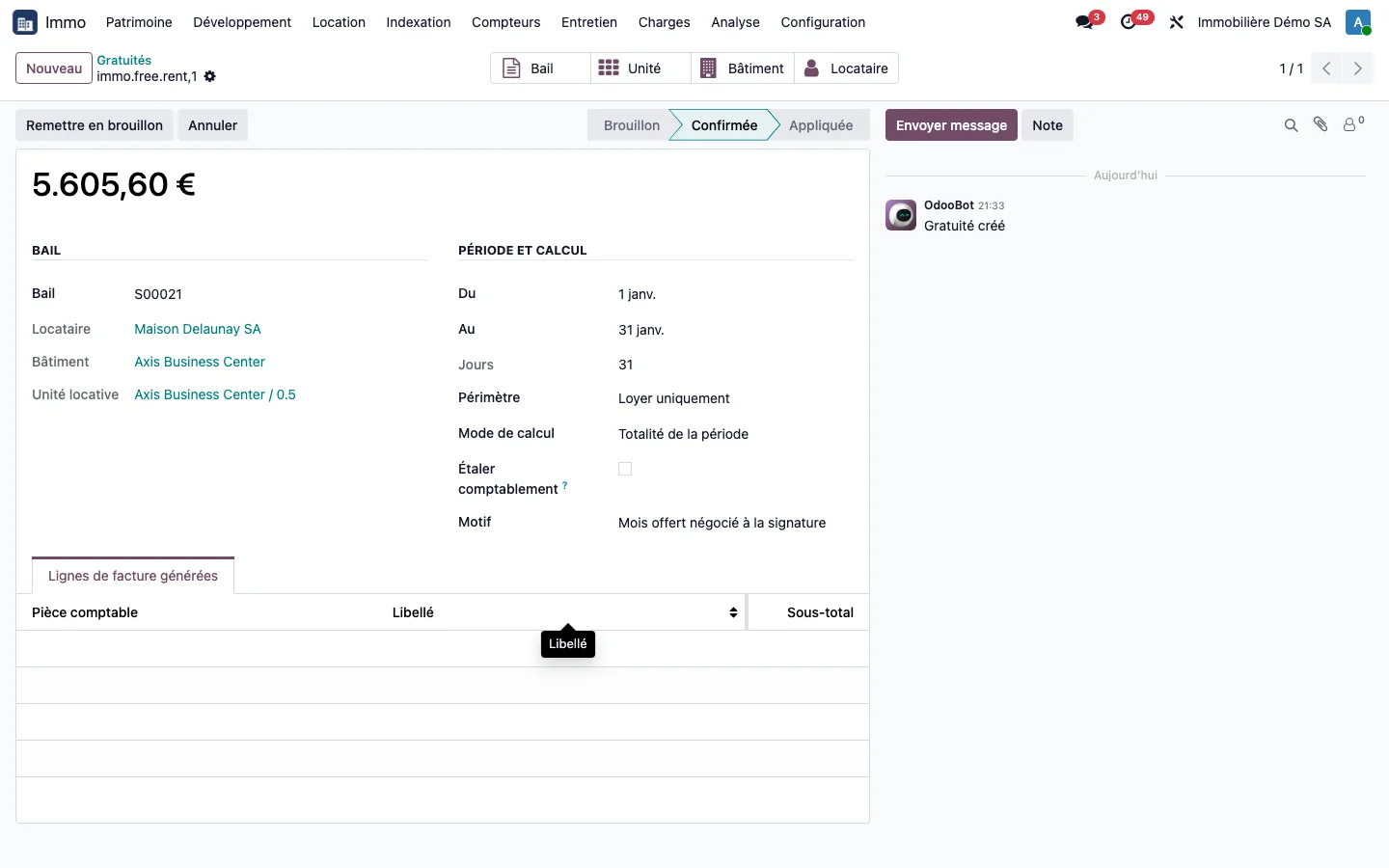
From the lease, on the Rent steps tab, or from Immo > Rental > Rent steps, add a rent step: a new amount or a percentage increase, on a given date. The rent step changes from “Scheduled” to “Applied” on its date, with the previous rent and the resulting rent. A rent-free period is created on the Rent-free periods tab of the lease or in Immo > Rental > Rent-free periods: a free period, a scope (rent, service charges or both) and a calculation method. It is deducted from the invoice.
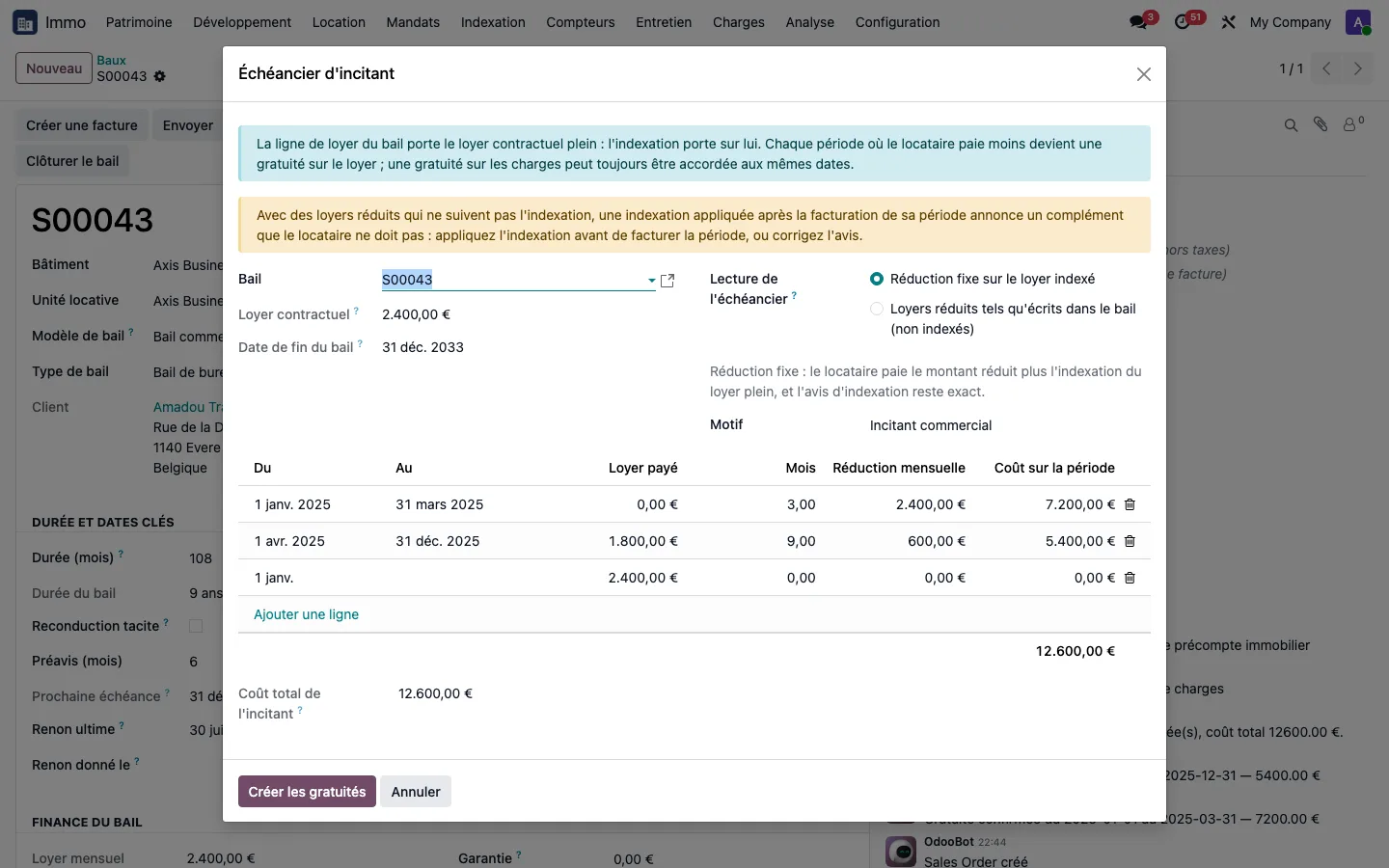
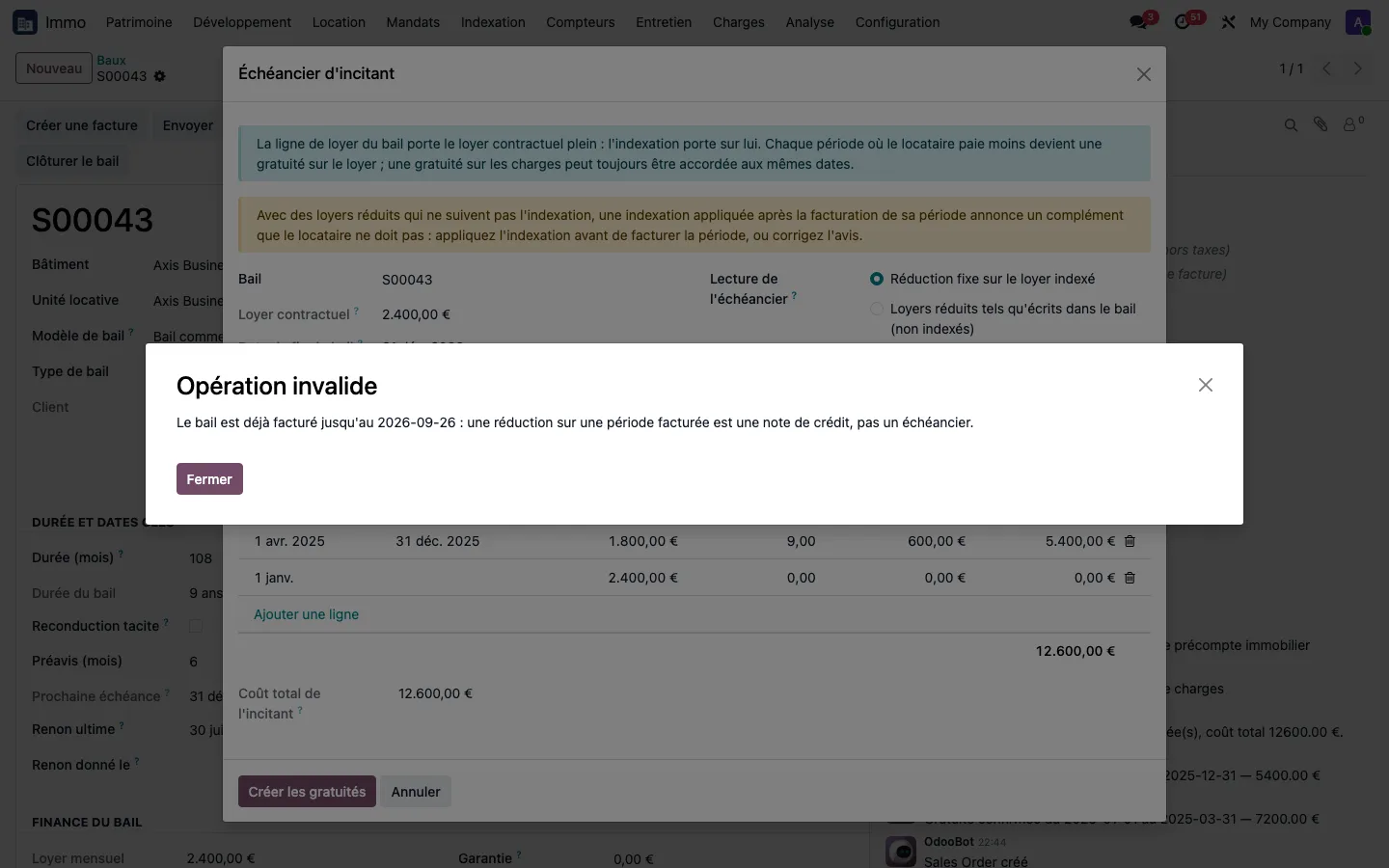
On a commercial lease with several free months followed by a gradual increase, the Incentive schedule button on the Rent-free periods tab opens a wizard: enter the periods and the rent paid, choose the reading (fixed reduction on the indexed rent, or reduced rents as written), and the wizard displays the total cost before creating all the rent-free periods at once. A period that has already been invoiced is rejected.
Step 5 · Decide on a renewal
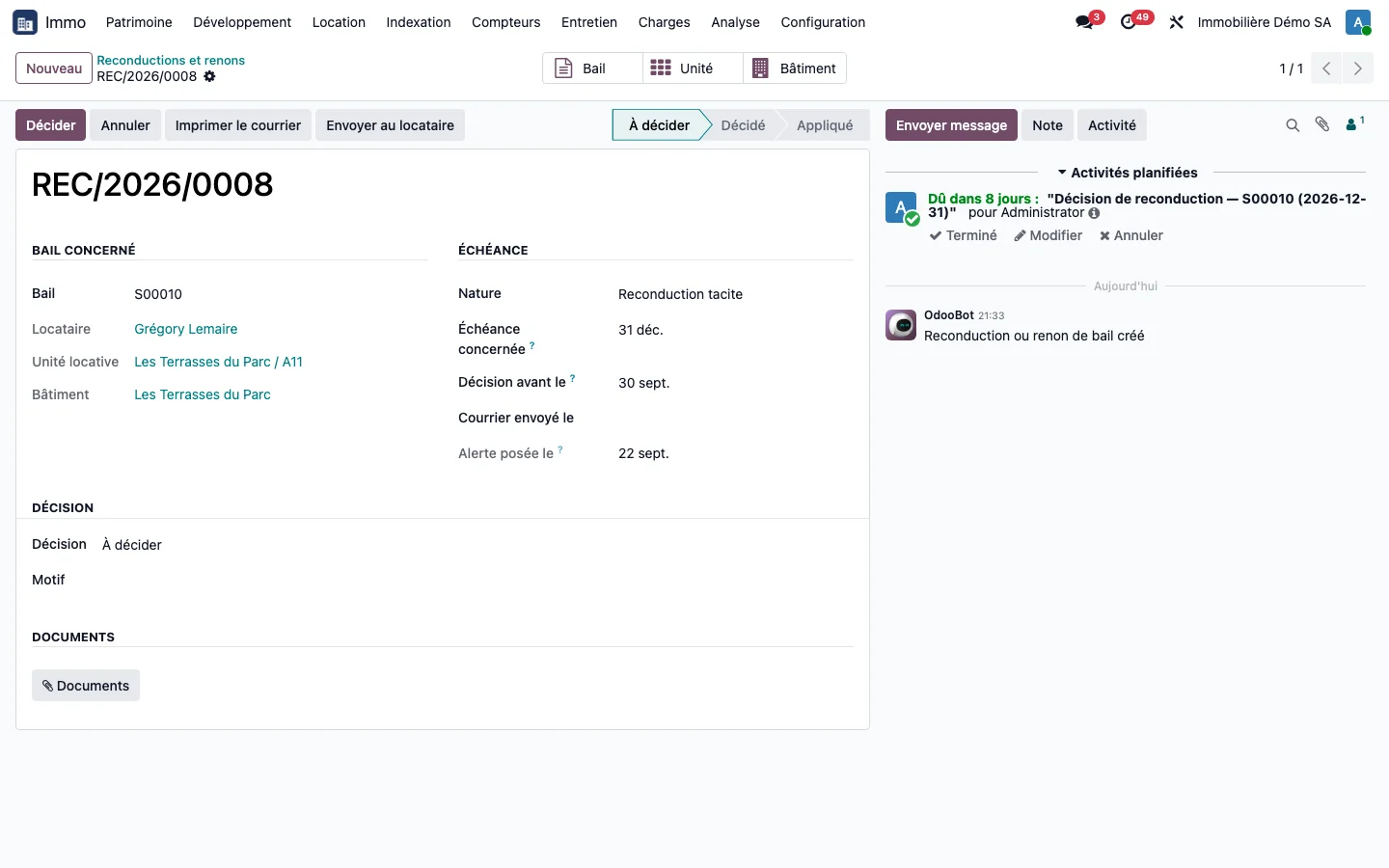
Open Immo > Rental > Renewals and notices, filter “To decide”. Each record shows the lease, the expiry date and the deadline for giving notice. Choose the decision: Renew, Renegotiate or Stop, then click Decide and finally Apply. The renewed lease remains the same record, and its new expiry date is recalculated.
Step 6 · Send the letter to the tenant
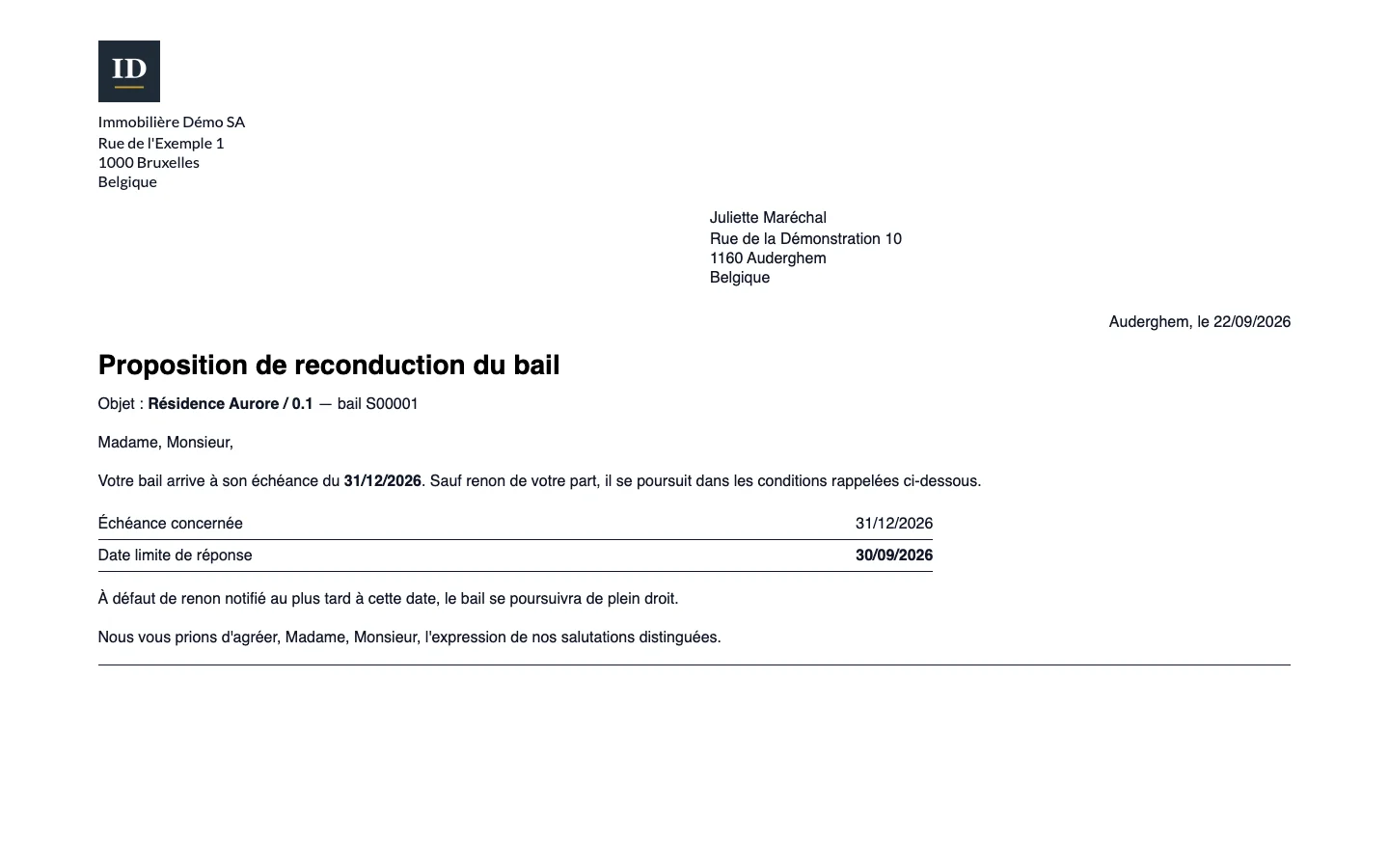
From the renewal record, Print letter or Send to tenant produces the renewal or notice letter.
Step 7 · Monitor leases without invoicing
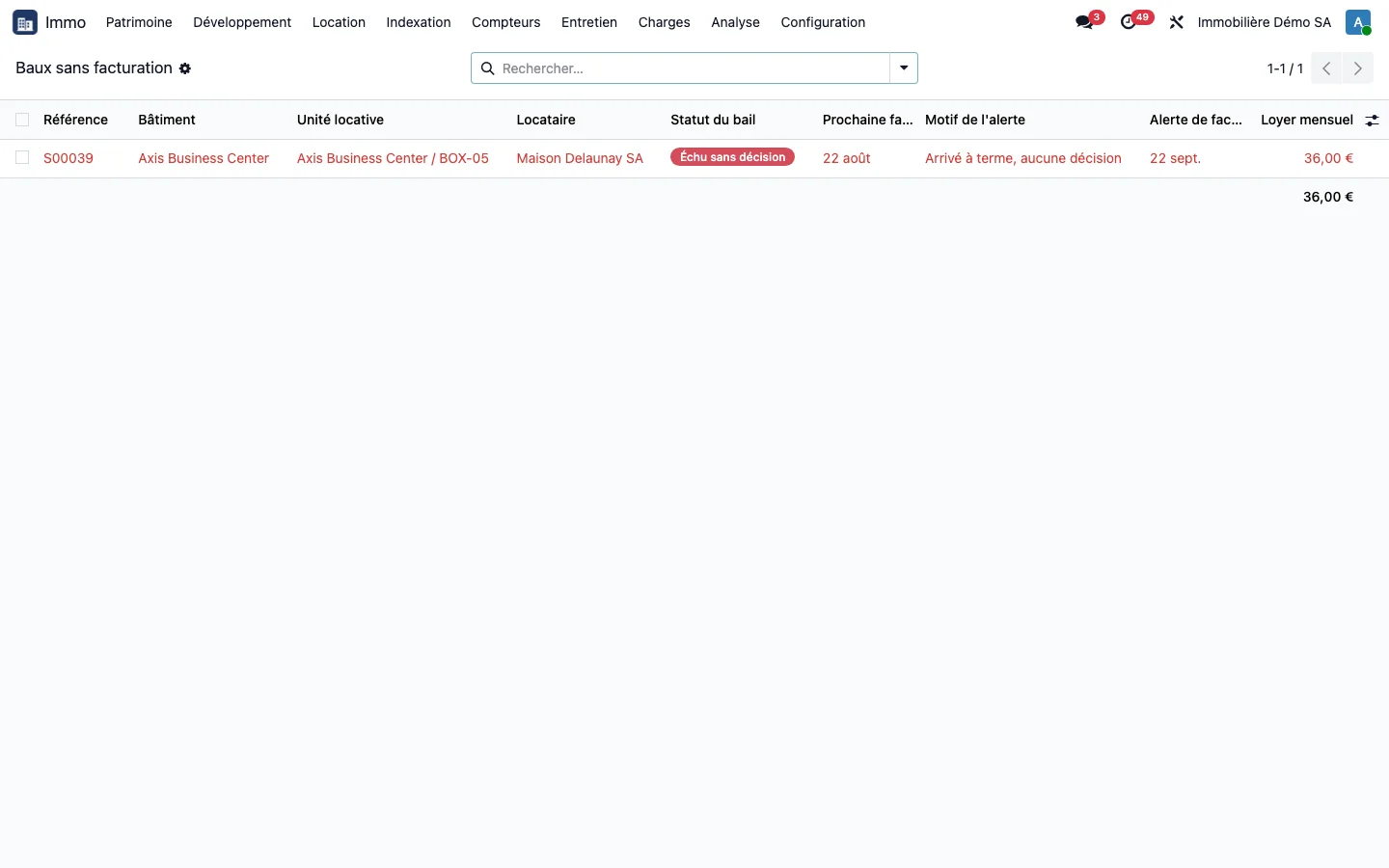
Open Immo > Rental > Leases without invoicing. Every lease that looks active but is no longer being invoiced appears there with its reason: reached its end date without a decision, closed early, outside recurring invoicing, no invoice, last invoice too old, next invoice overdue. The alert disappears by itself once invoicing resumes.
Step 8 · Close a lease on notice
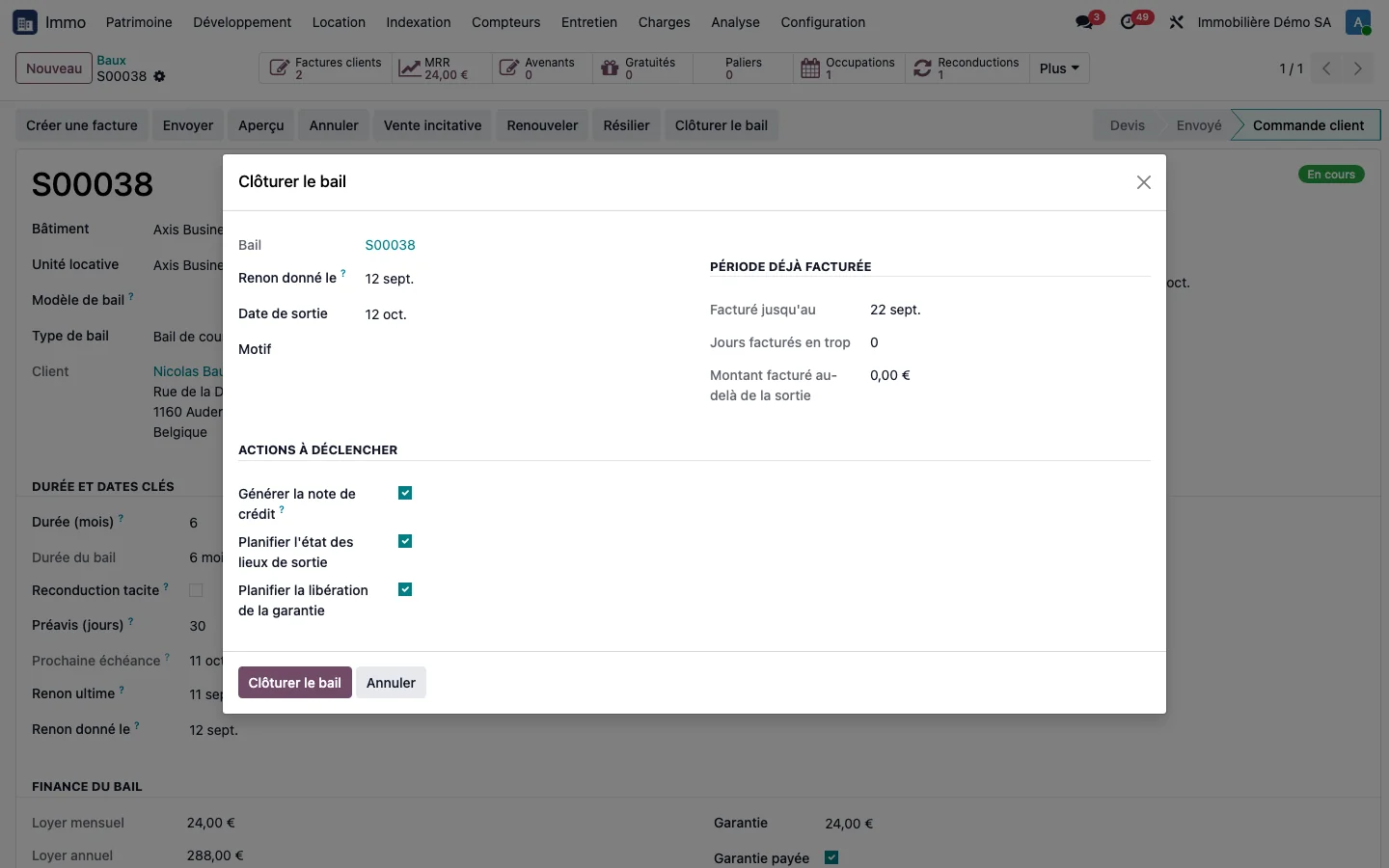
On the lease, click Close the lease. Enter the notice date: the wizard proposes the move-out date by applying the lease's notice period. It shows the period already invoiced and calculates the overbilling pro rata to the number of days. Three actions are ticked by default: generate the credit note, schedule the exit inventory and condition report, schedule the release of the rental deposit.
Step 9 · View availability
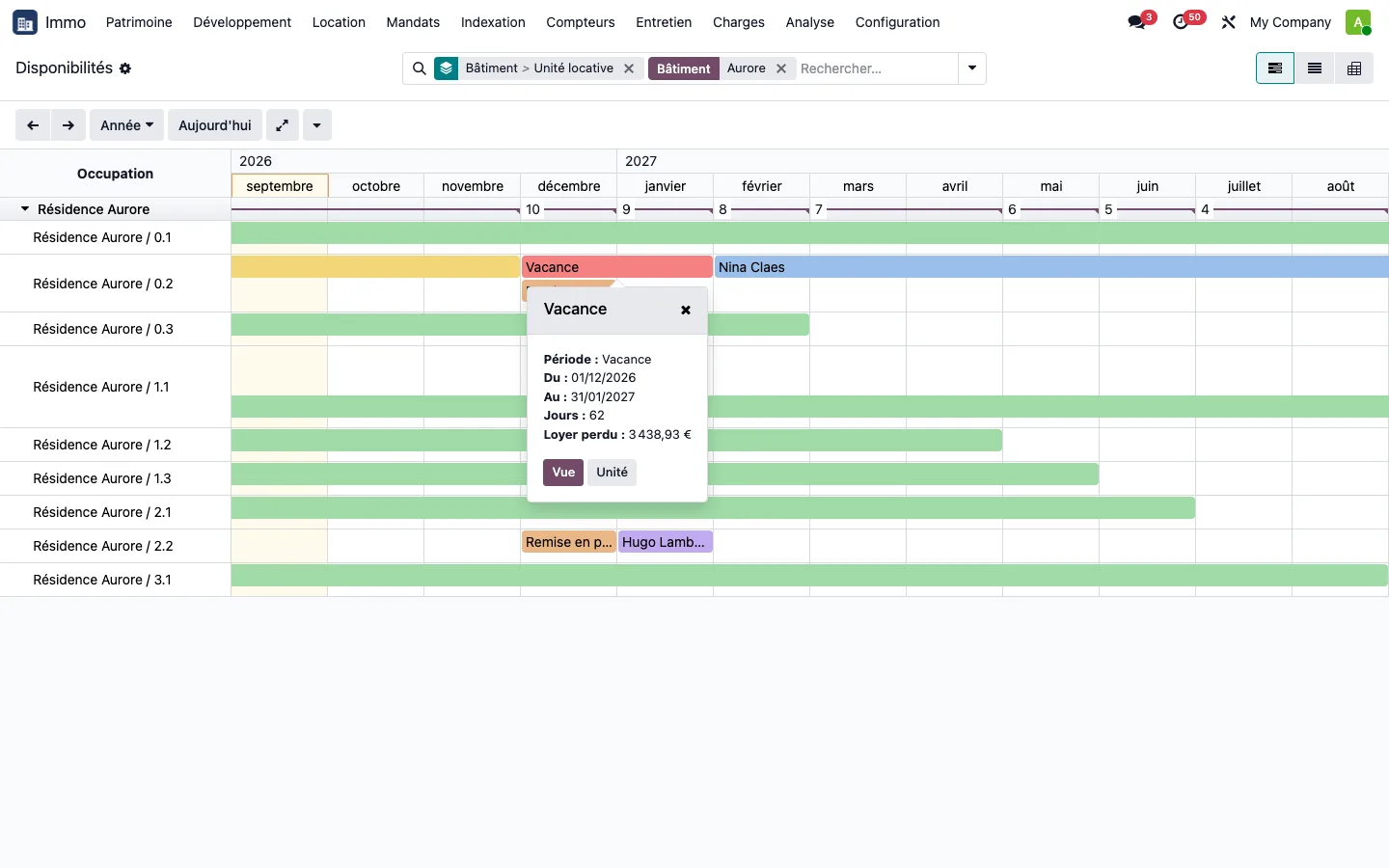
Open Immo > Rental > Availability and filter on a building. Each period has its own colour: occupied, lease under notice, future occupancy, vacancy, works, reserved. Clicking a period gives the dates, the days and, for a vacancy, the lost rent pro rata to the reference rent.
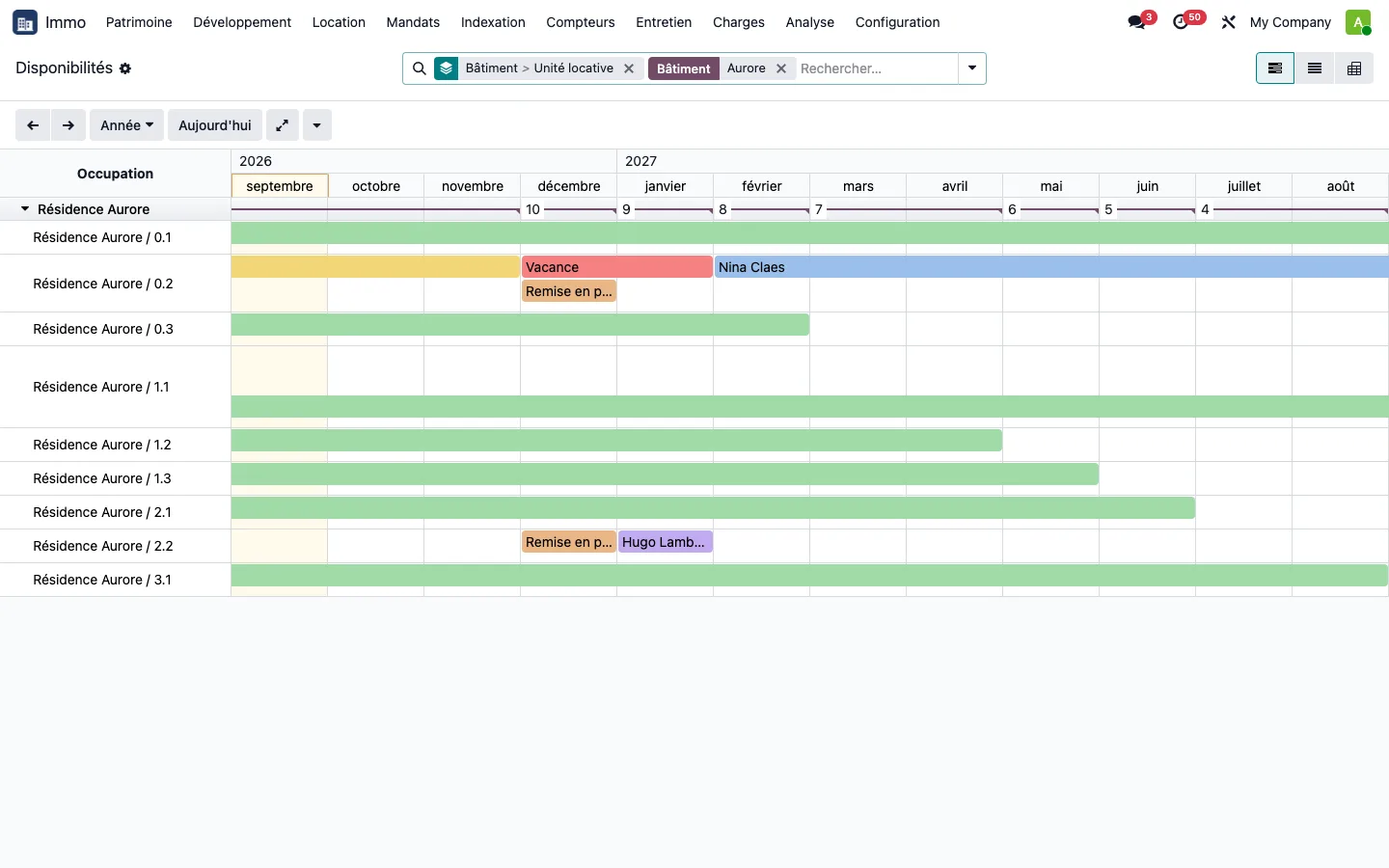
From a unit or a building, click Schedule works to set a works period or a reservation, on one or several units at a time. Two filters answer everyday questions: “Lease ending within 3 months” and the units that are vacant today.
Step 10 · Book a storage unit
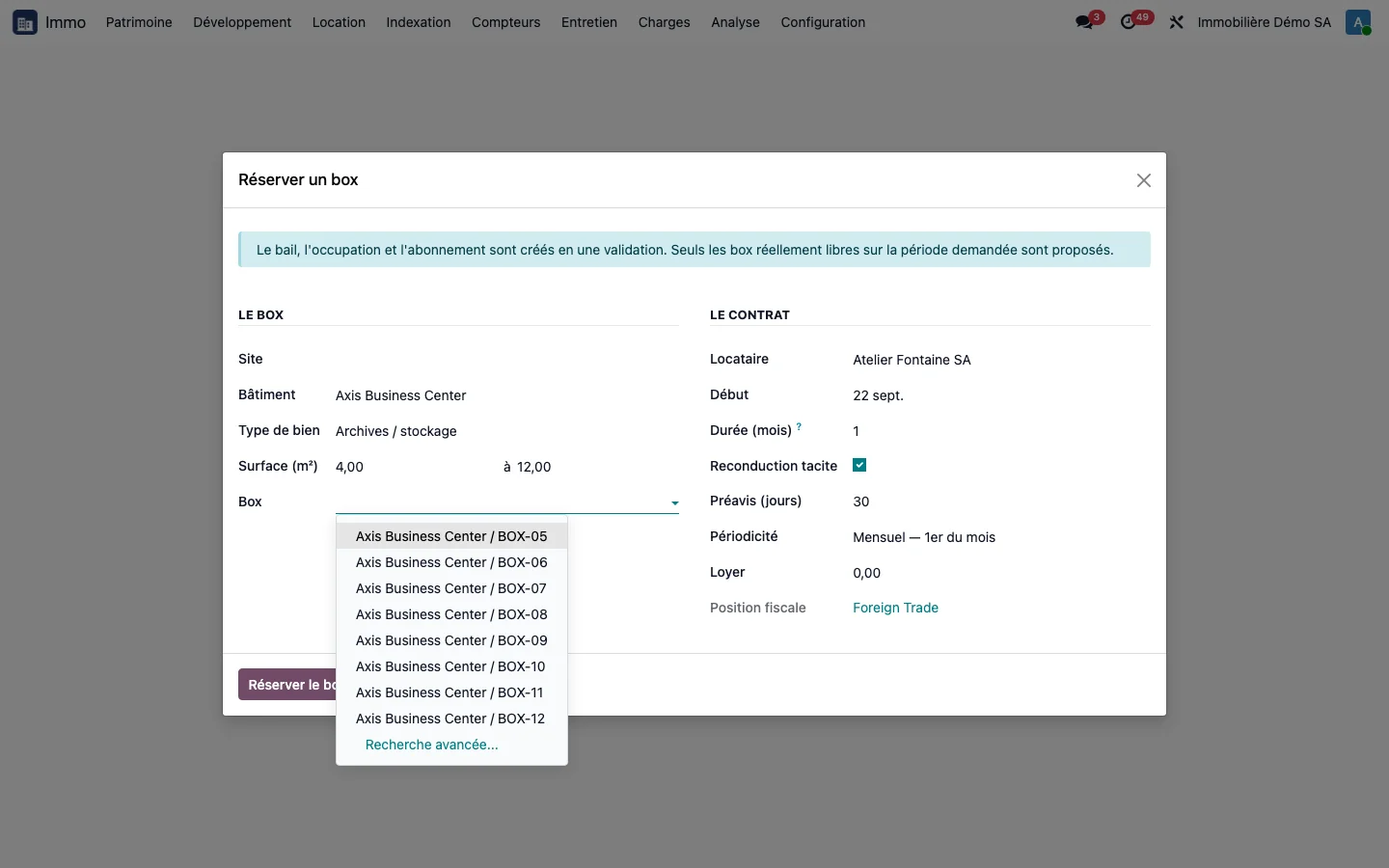
Open Immo > Rental > Book a storage unit. Enter the site, the building, the property type, the minimum and maximum area, the start date and the term in months, or tick “Tacit renewal”: the list only offers the storage units that are free over that period. Choose the storage unit, the tenant, the rent and the notice period in days, then click Book the storage unit. The lease, the occupancy and the subscription are created.
Step 11 · Track the storage unit portfolio
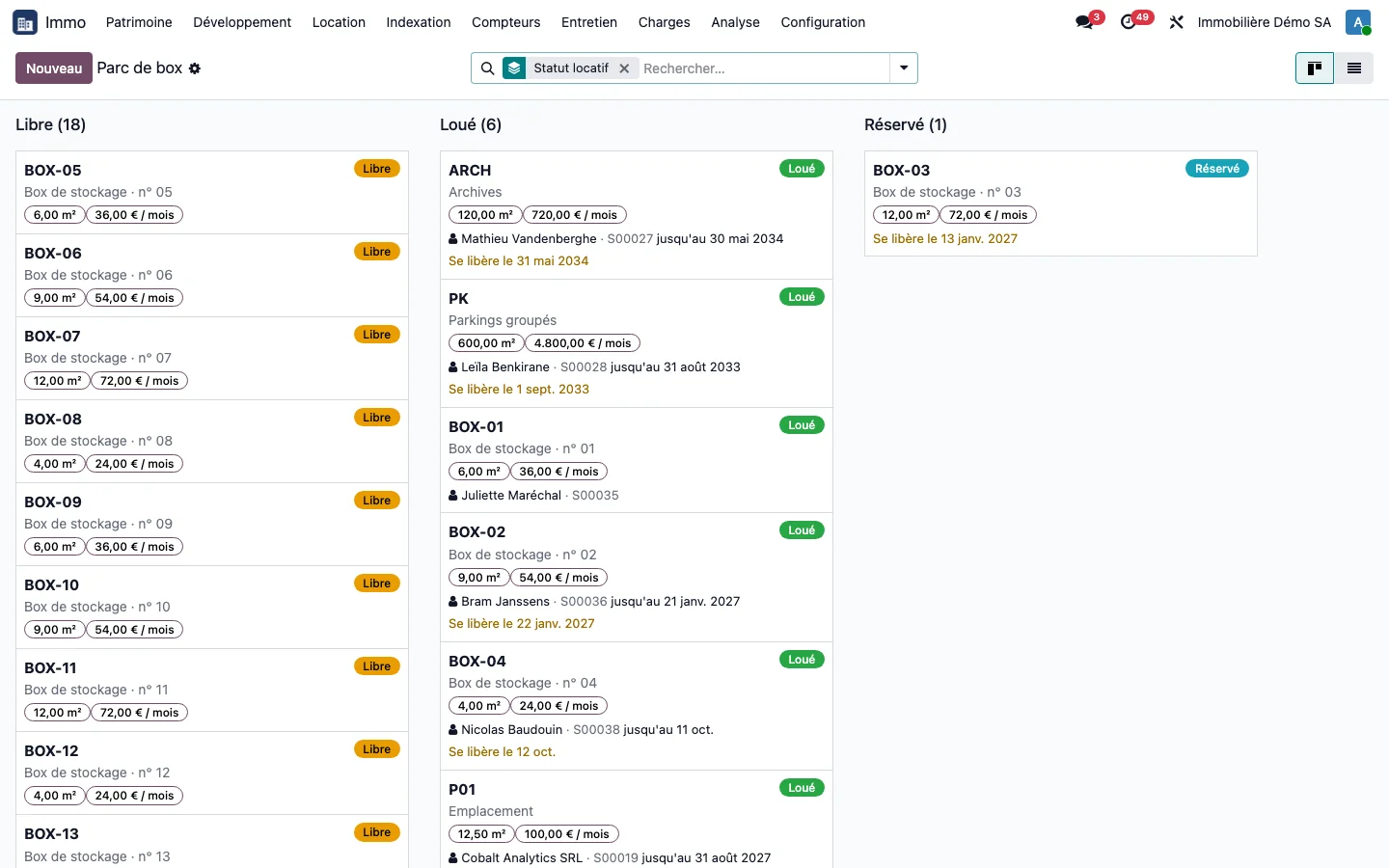
Open Immo > Rental > Storage unit portfolio. The storage units are arranged in columns: Free, Let and Reserved. Each card shows the area, the reference rent, the current tenant, the end of the contract and the vacating date. The “Becoming free in under 30 days” filter prepares the re-letting.
Step 12 · Find a tenant
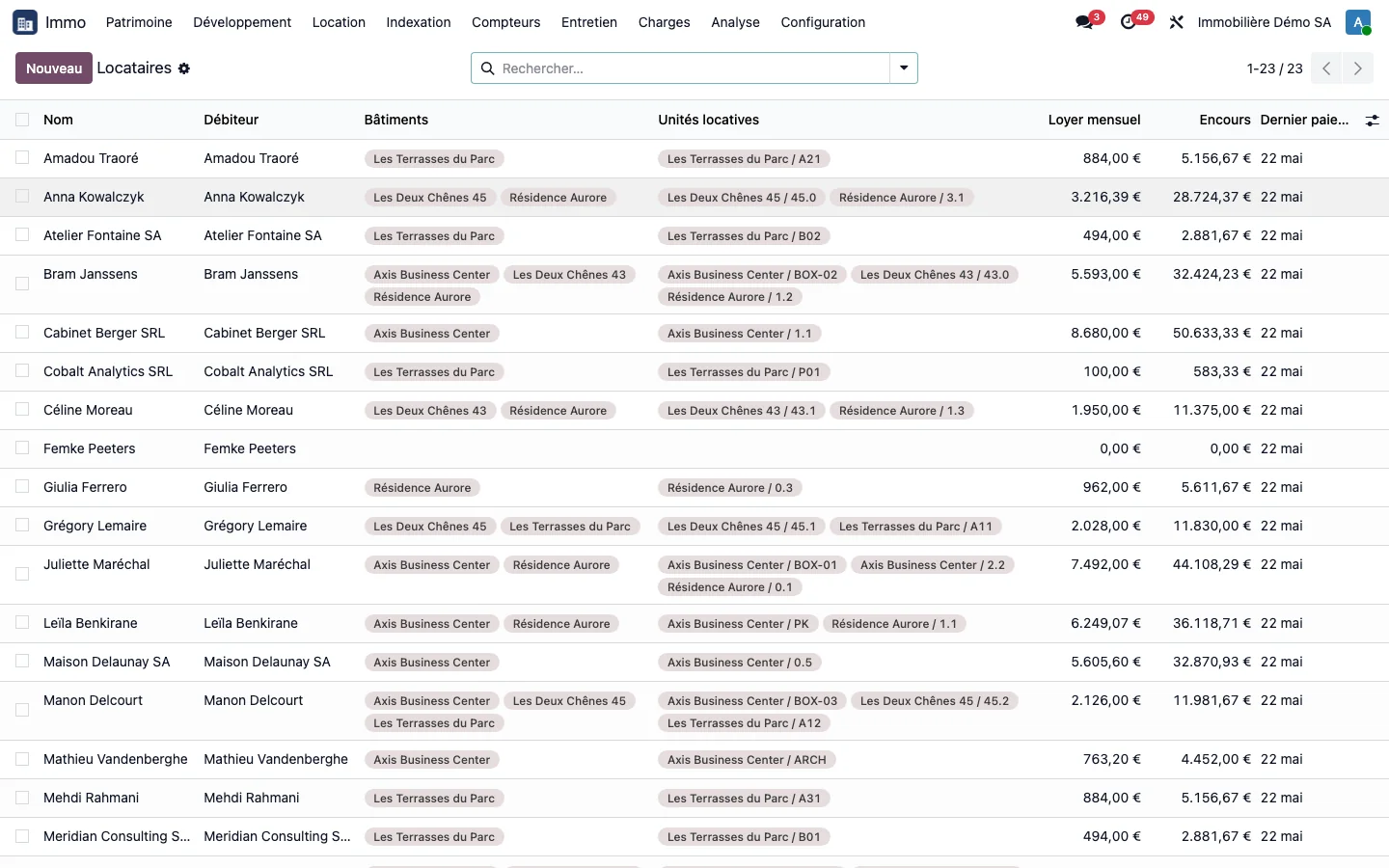
Open Immo > Rental > Tenants: debtor, buildings and units occupied, current monthly rent, outstanding balance and date of the last payment.
Step 13 · View co-tenancy and guarantors
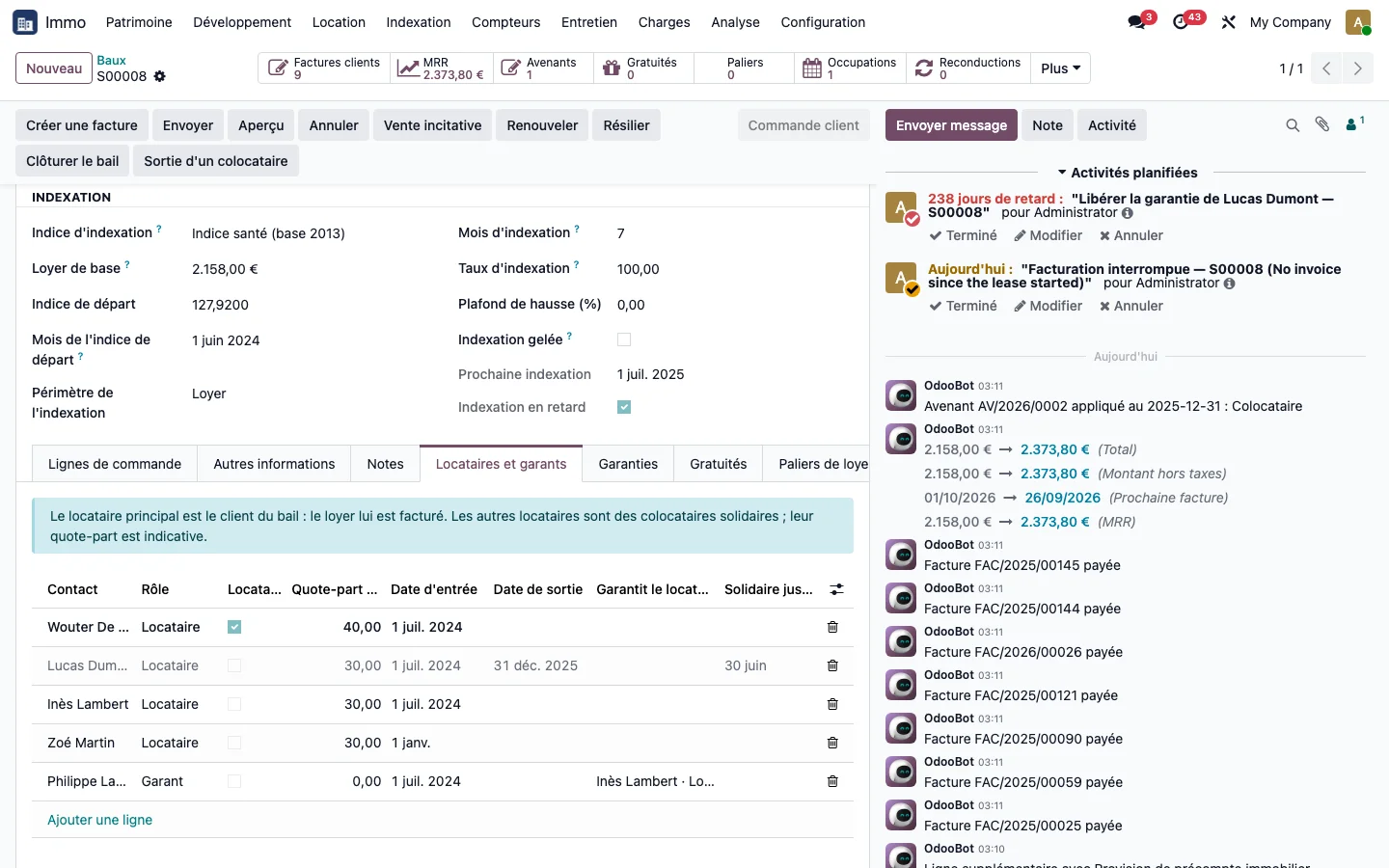
Open a lease and click the Tenants and guarantors tab. The main tenant is ticked: the rent is invoiced to them. Each co-tenant has their share, their entry and exit dates, and each guarantor is linked to the tenant they guarantee.
Step 14 · Read the lease rental deposits
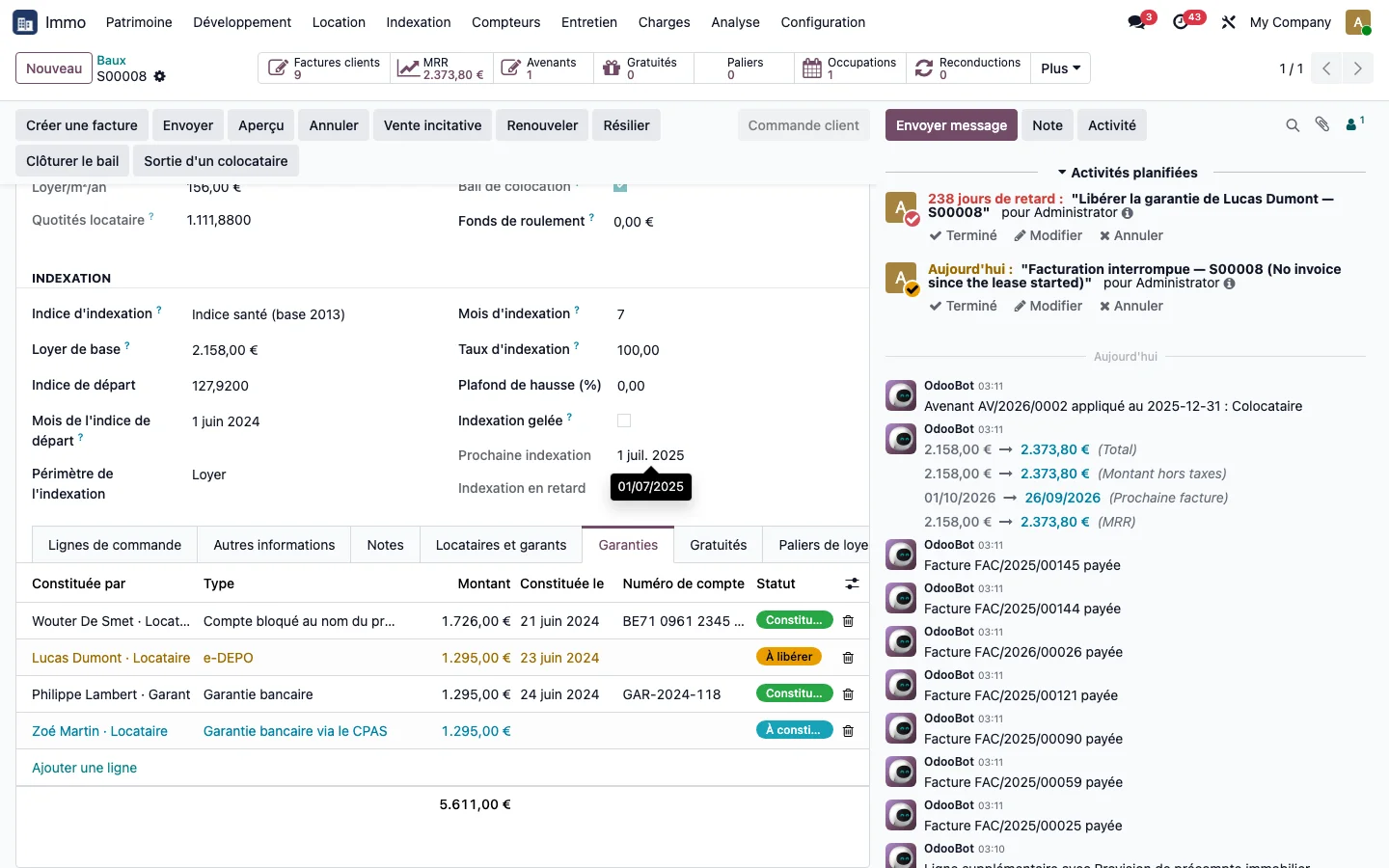
The Rental deposits tab lists one rental deposit per person: its form (blocked account in the tenant's name, e-DEPO, bank guarantee, bank guarantee via the CPAS, bank surety, deposit held by the owner, cash or letter of guarantee), its amount, its date, its reference and its status.
Step 15 · Read the rental deposit amounts
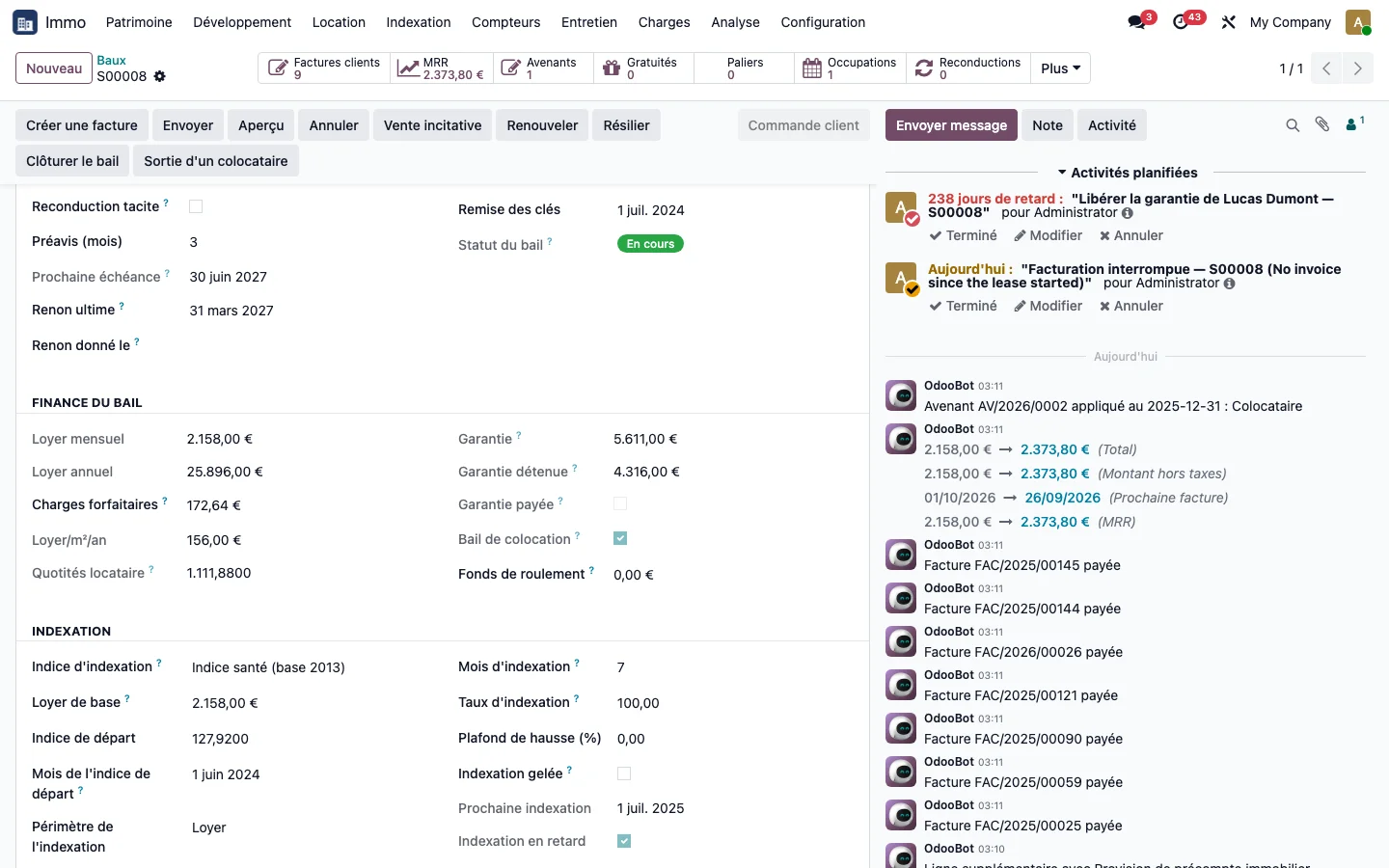
The lease's Finance block adds up the total rental deposit due and the rental deposit already held, and carries the Co-tenancy lease checkbox.
Step 16 · Release a co-tenant
On the lease, click Co-tenant exit. Enter the departing tenant, the exit date, the end of joint liability, any replacement, and tick the release of their rental deposits.
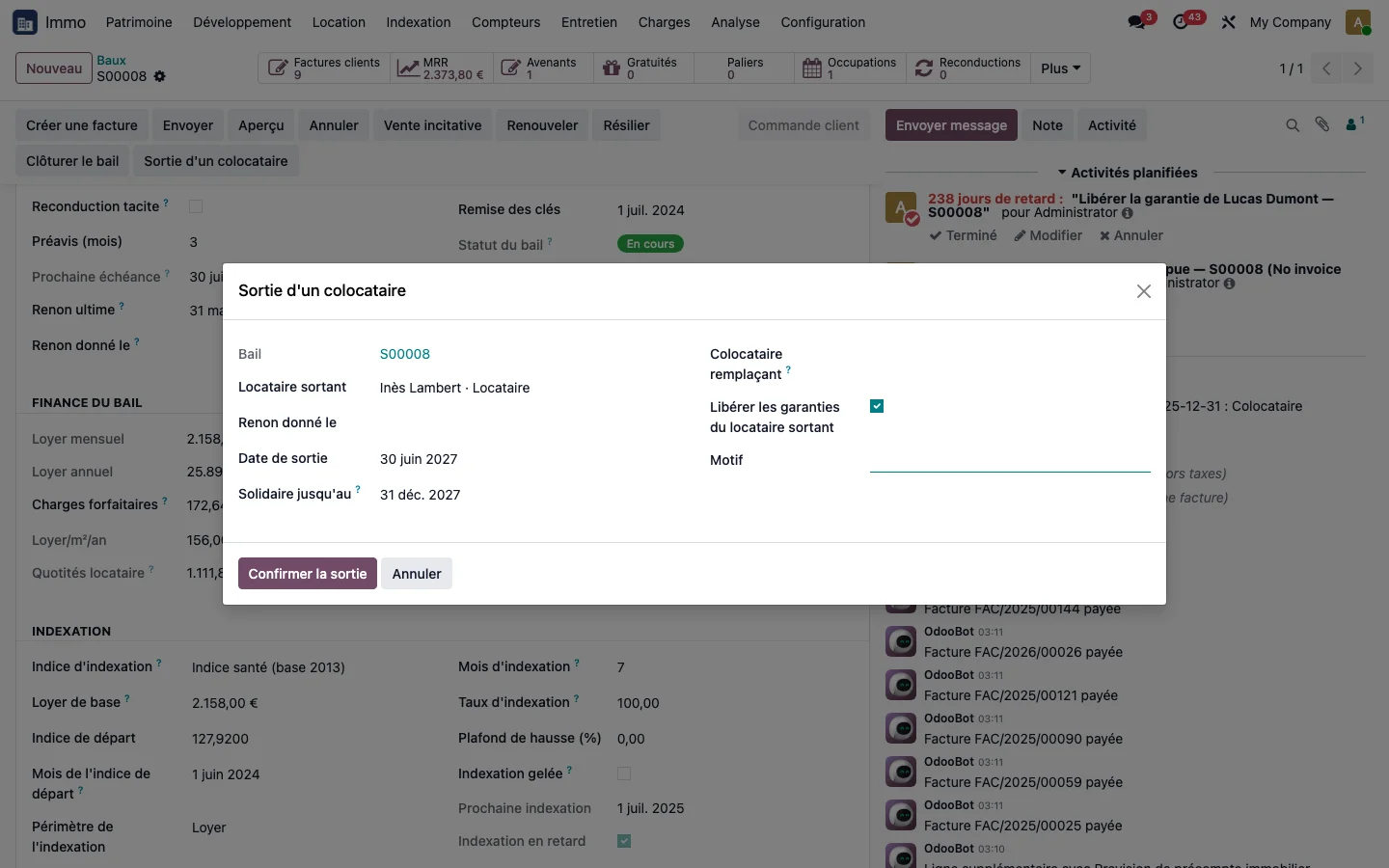
Step 17 · Check the co-tenant lease amendment
The confirmed exit applies a lease amendment of type Co-tenant to the lease, without altering the history of the previous holders.
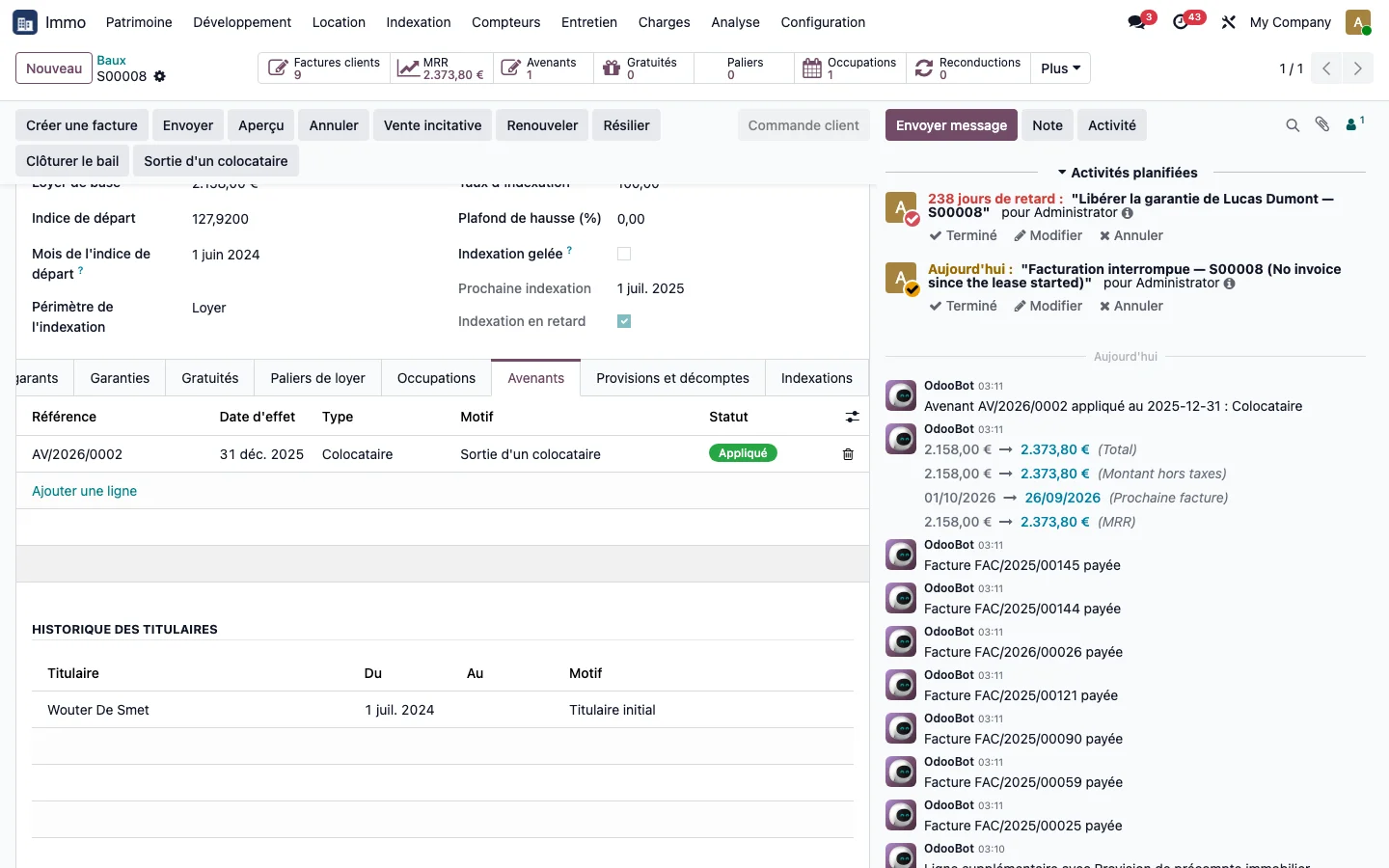
Step 18 · Release a rental deposit
Open Immo > Rental > Rental deposits, filter “to be released”. On the rental deposit record, the amount to be returned is proposed, and the Mark as released button closes the rental deposit. A rental deposit retained in full for damage keeps a returned amount of zero.
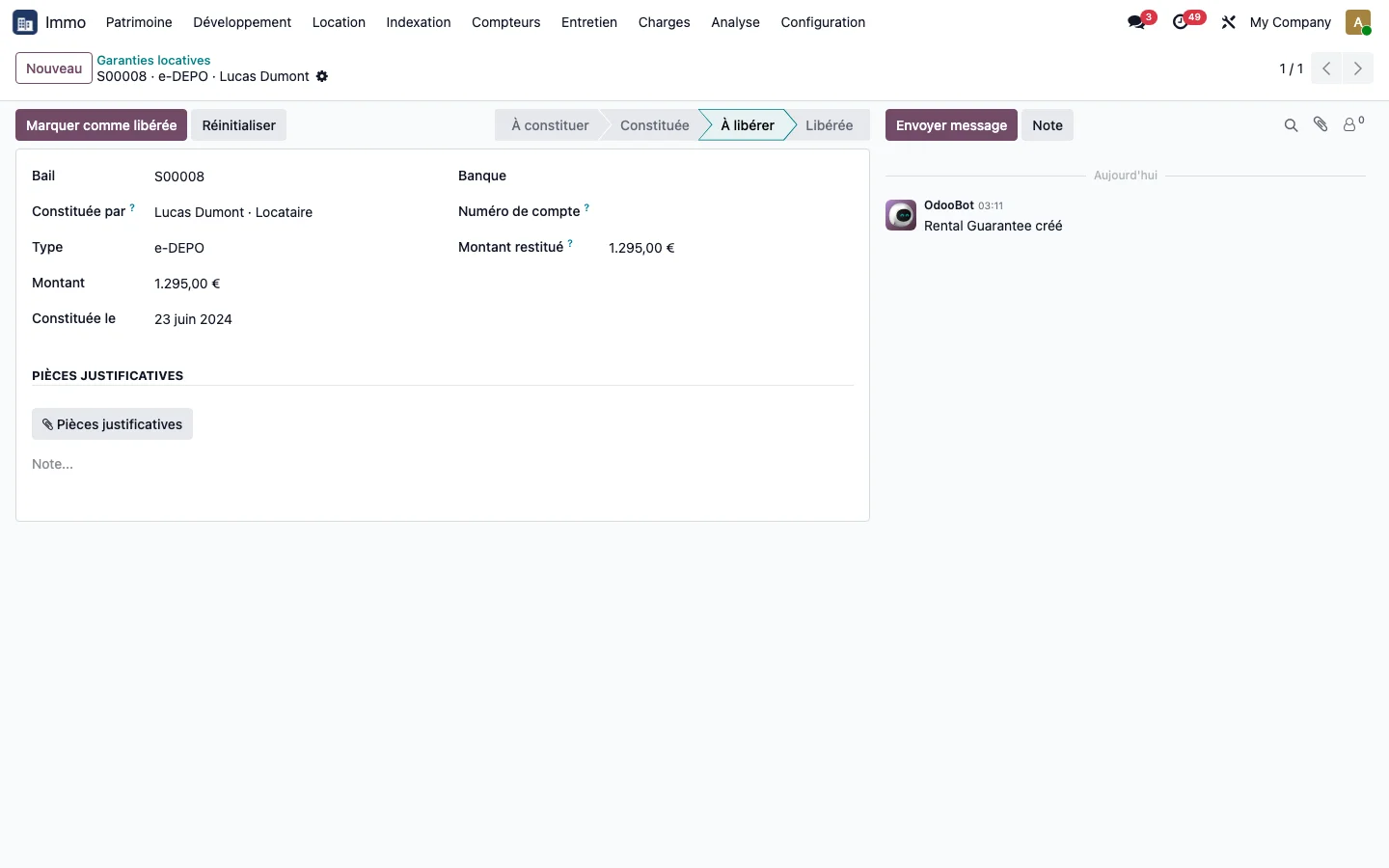
Step 19 · Track the portfolio rental deposits
Open Immo > Rental > Rental deposits without a filter: all the rental deposits held across the portfolio, by lease and by tenant.