Required profile: service charge manager.
Part 1 · The service charge statement
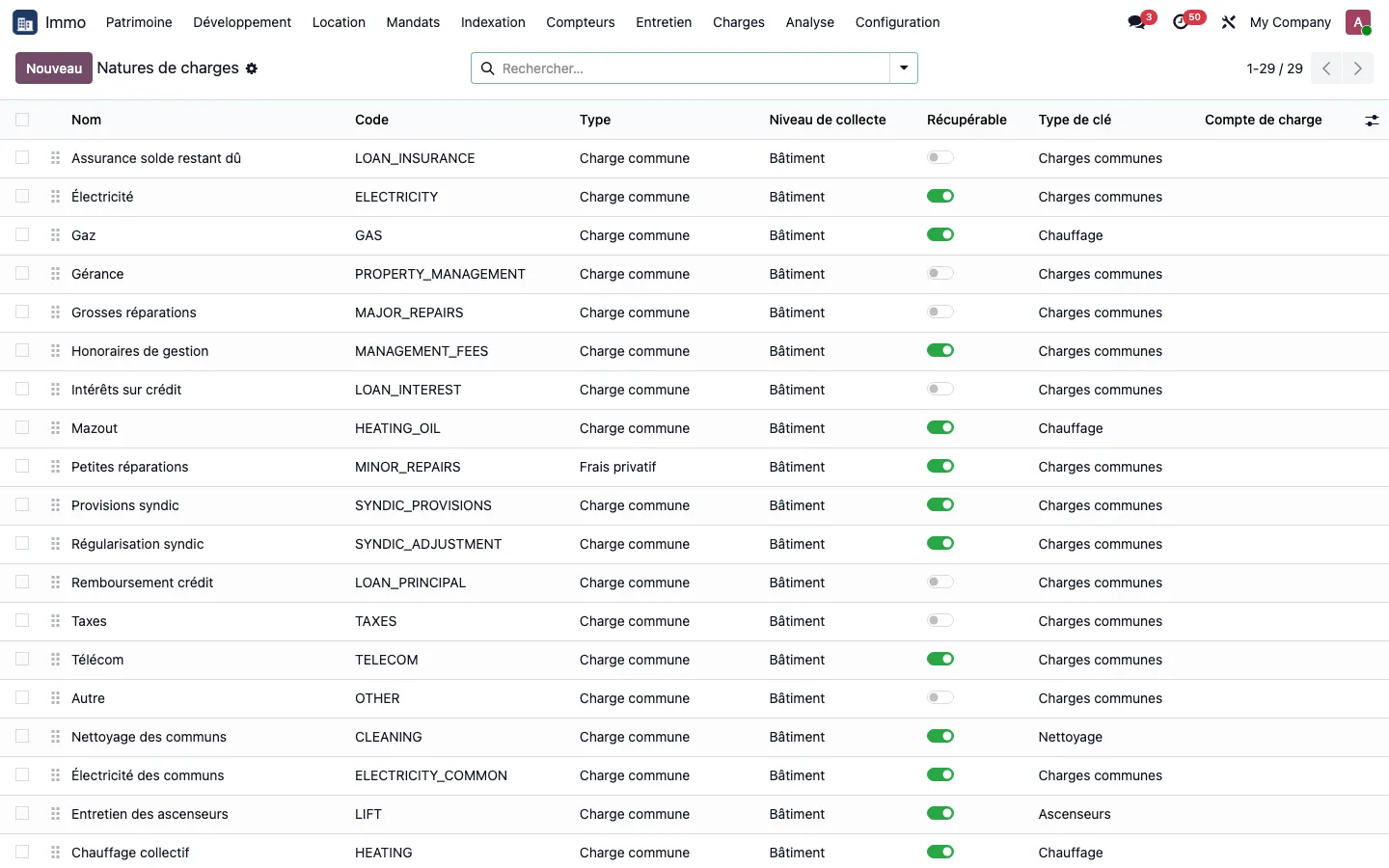
Twenty-one service charge types are supplied ready to use, in four languages, with their recoverable or non-recoverable status already set: open Immo > Configuration > Service charge types to review them before qualifying a bill. Service charge types already present at an existing customer are not duplicated.
Step 1 · Qualify the service charge on the vendor bill
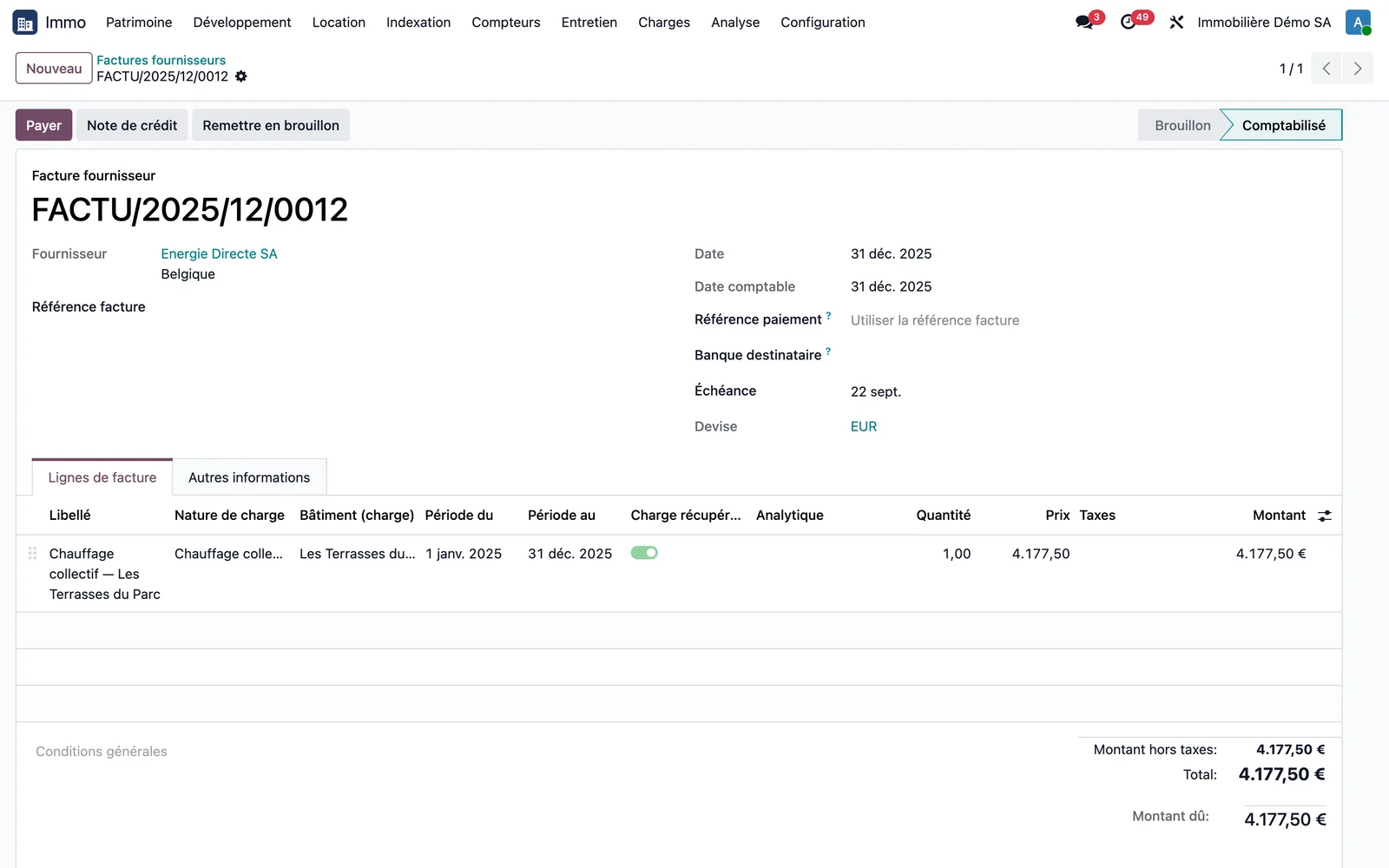
On the vendor bill line, enter the service charge type, the building or site, the unit for a private cost, and the period covered. Qualified lines can be found in Immo > Service charges > Recoverable service charges.
Step 2 · Generate the statement
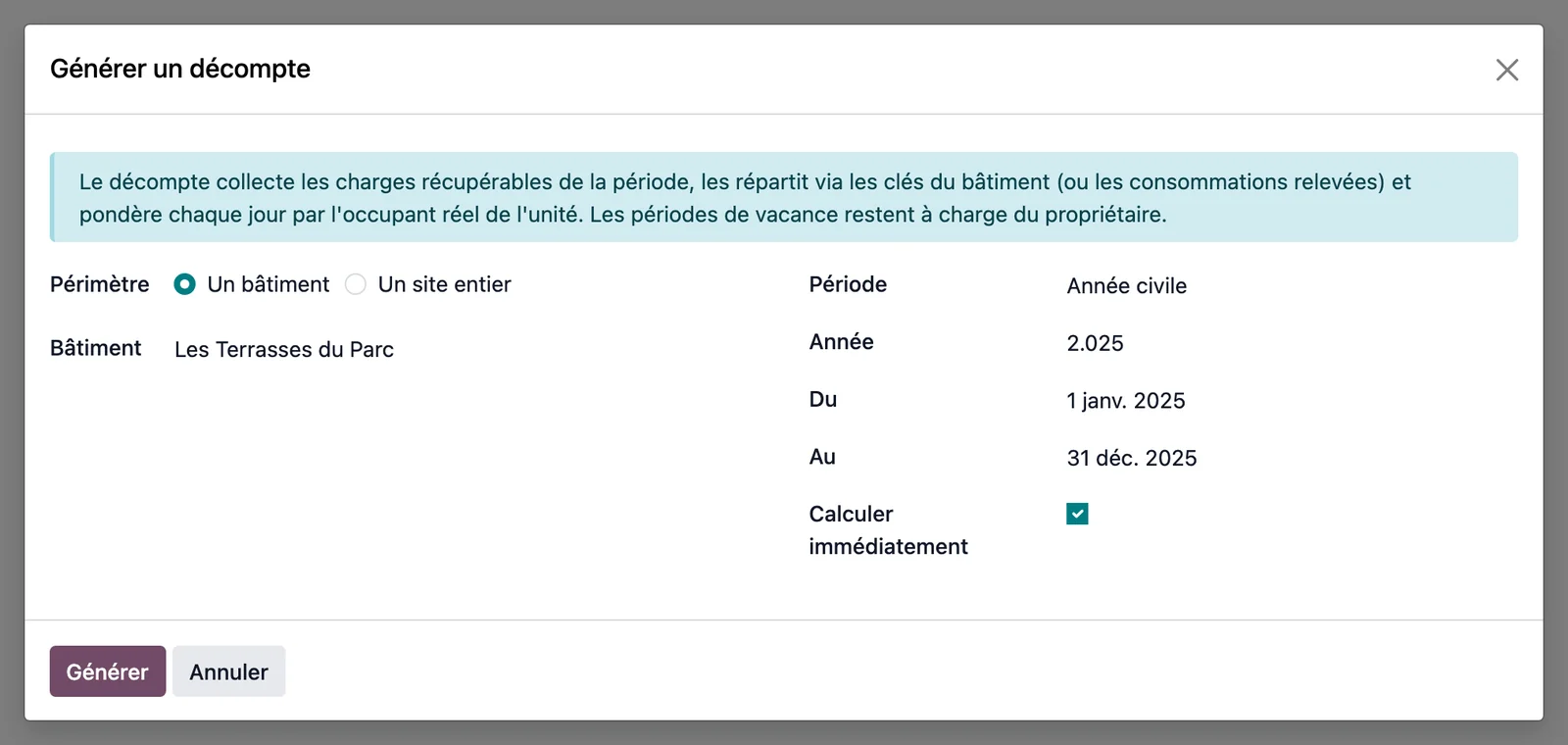
Open Immo > Service charges > Generate a statement, choose the scope (a building or an entire site) and the period (calendar year, half-year, quarter or custom period). The Calculate immediately box chains collection and calculation.
Step 3 · Calculate and check the statement
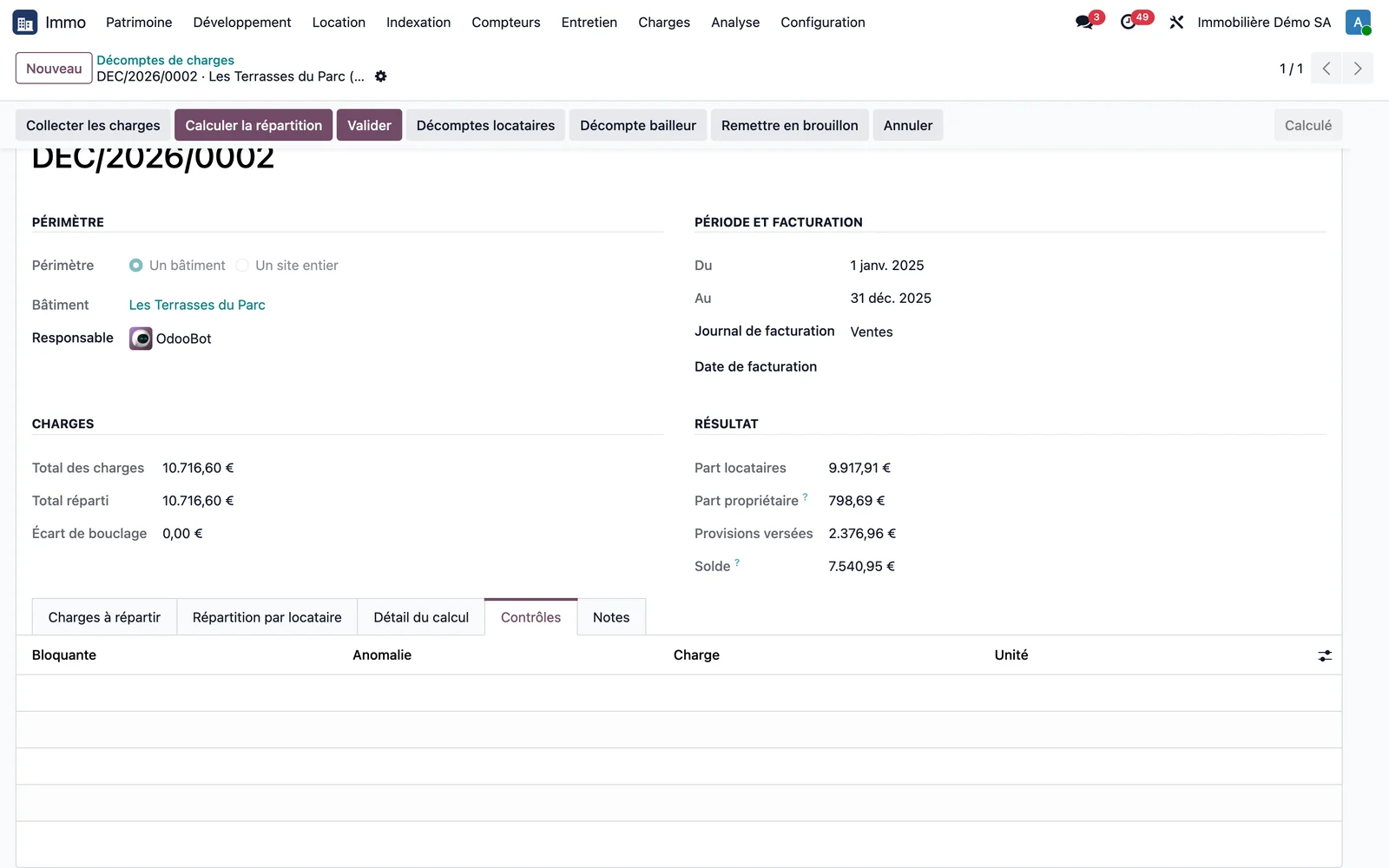
On the statement, Collect service charges picks up the service charges of the period, then Calculate allocation applies the allocation keys, splits each share between successive occupants and deducts the service charge advances. The header compares total service charges with total allocated (balancing difference) and the Checks tab lists any anomalies. A blocking anomaly prevents validation.
Step 4 · Justify an amount
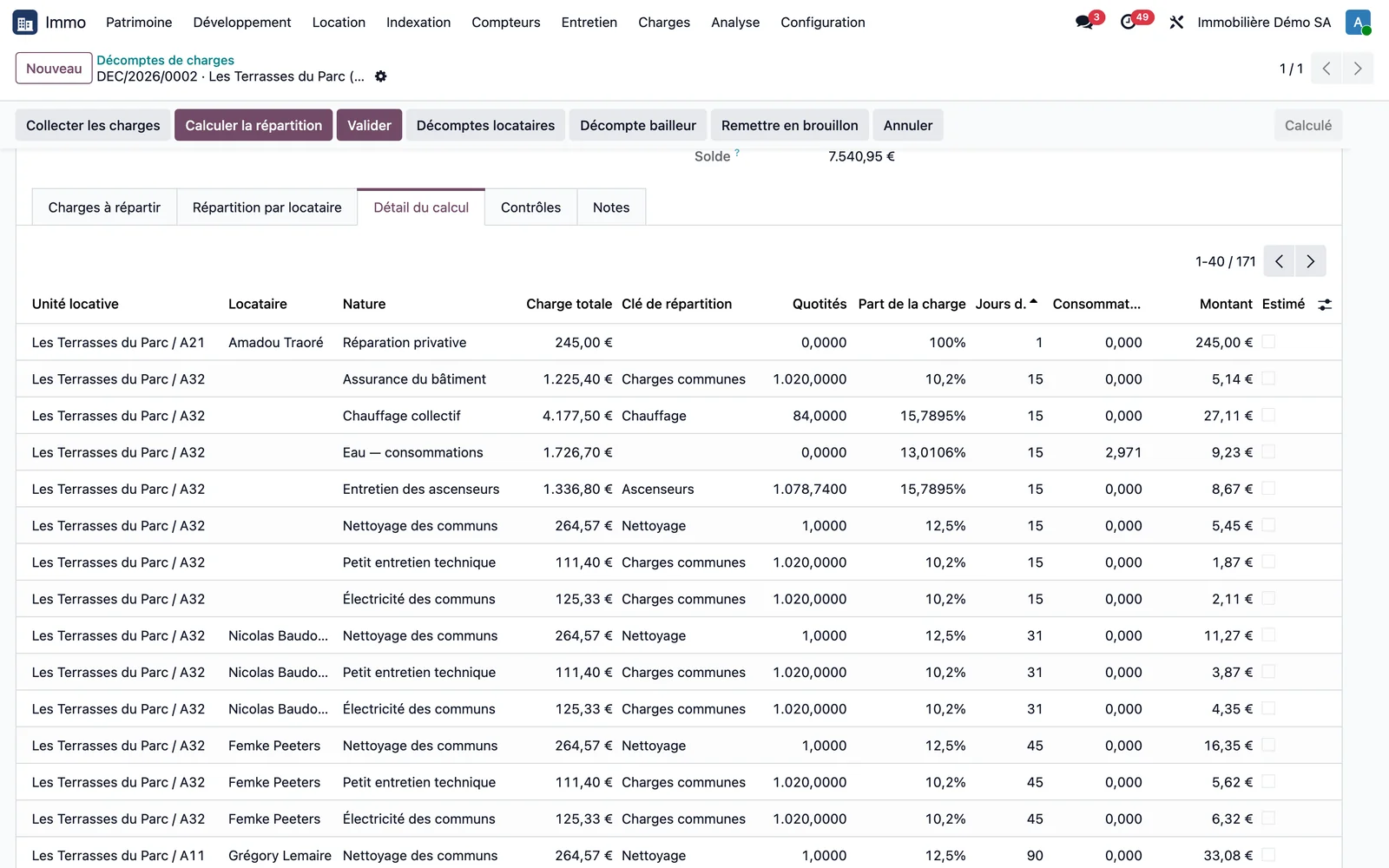
The Calculation details tab shows, line by line, the service charge type, the key, the share, the days of occupancy, the consumption and the amount due. Each line opens the lease, the unit, the tenant and the invoice produced.
Step 5 · Validate and invoice
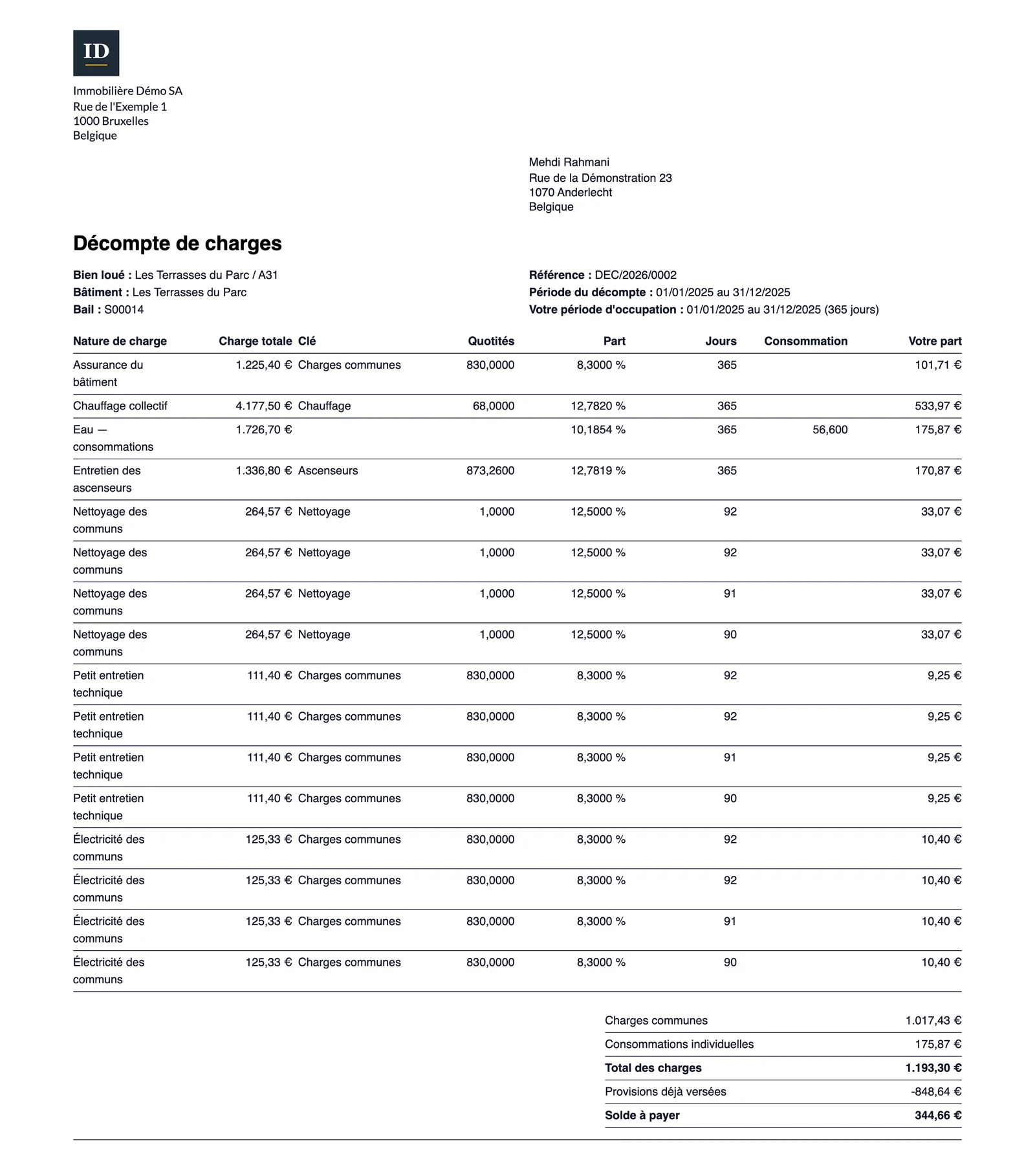
Validate, then Invoice, which only appears once the statement is validated: an invoice or a credit note is created per tenant, depending on the balance. Tenant statements prints the documents to hand over, Landlord statement the owner's view.
Step 6 · Review the service charge advances
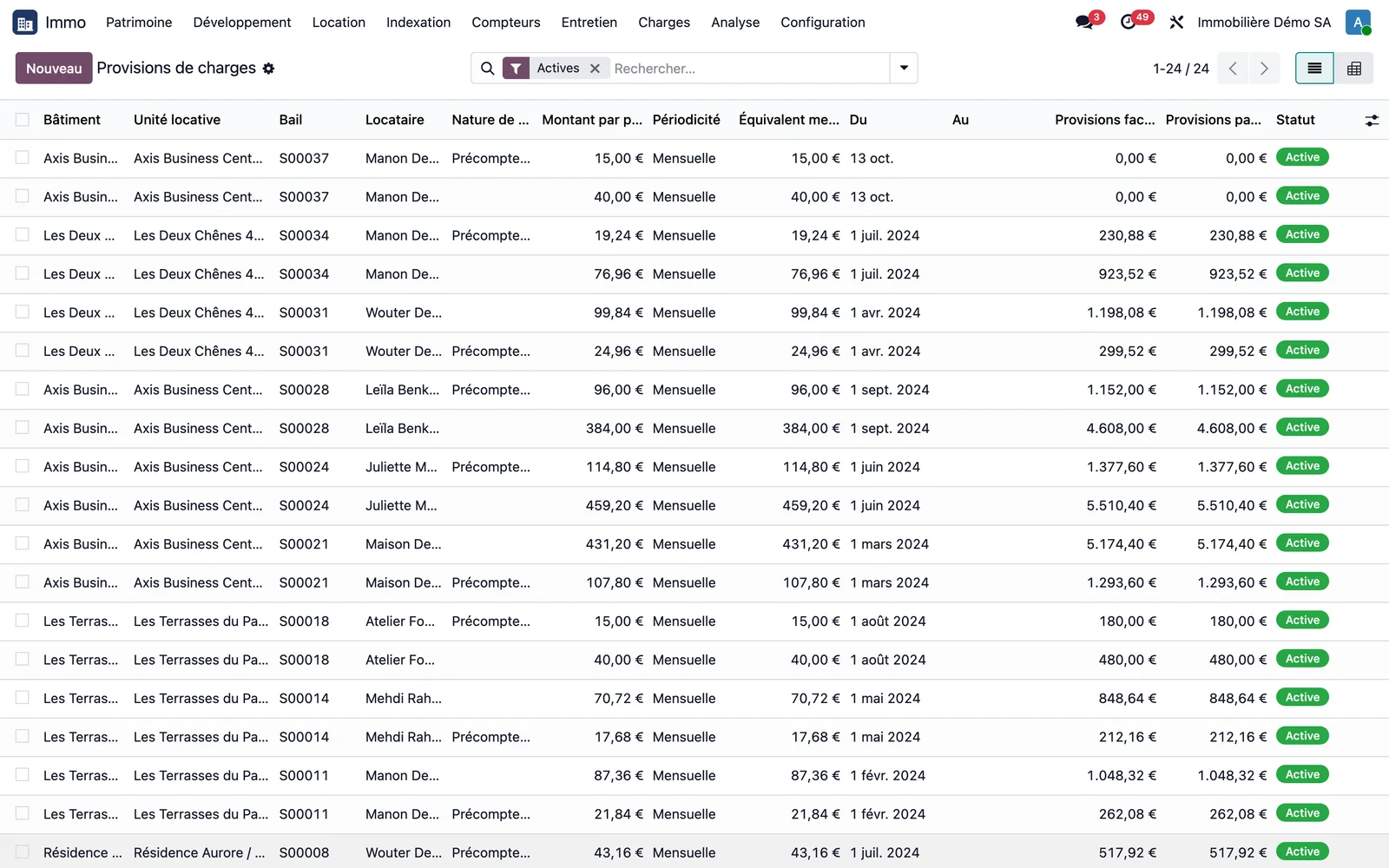
Open Immo > Service charges > Service charge advances. The list shows, lease by lease and service charge type by service charge type, the amount, the frequency, and the service charge advances invoiced and paid. A monthly scheduled action, supplied inactive, compares actual service charges with the service charge advances called after each invoiced statement: beyond a 15% difference, it recommends a revision in the service charge advance history.
Part 2 · Recharging the property tax
Step 1 · Prepare the service charge type
The "property tax" service charge type switches to "Immediate recharge" and has its own service charge advance call product. The building has a service charge journal.
Step 2 · Enter the assessment notice
Enter the assessment notice like a vendor bill, with the property tax service charge type on the line, and post it. The Recharge to tenants button appears in the header.
Step 3 · Check the allocation
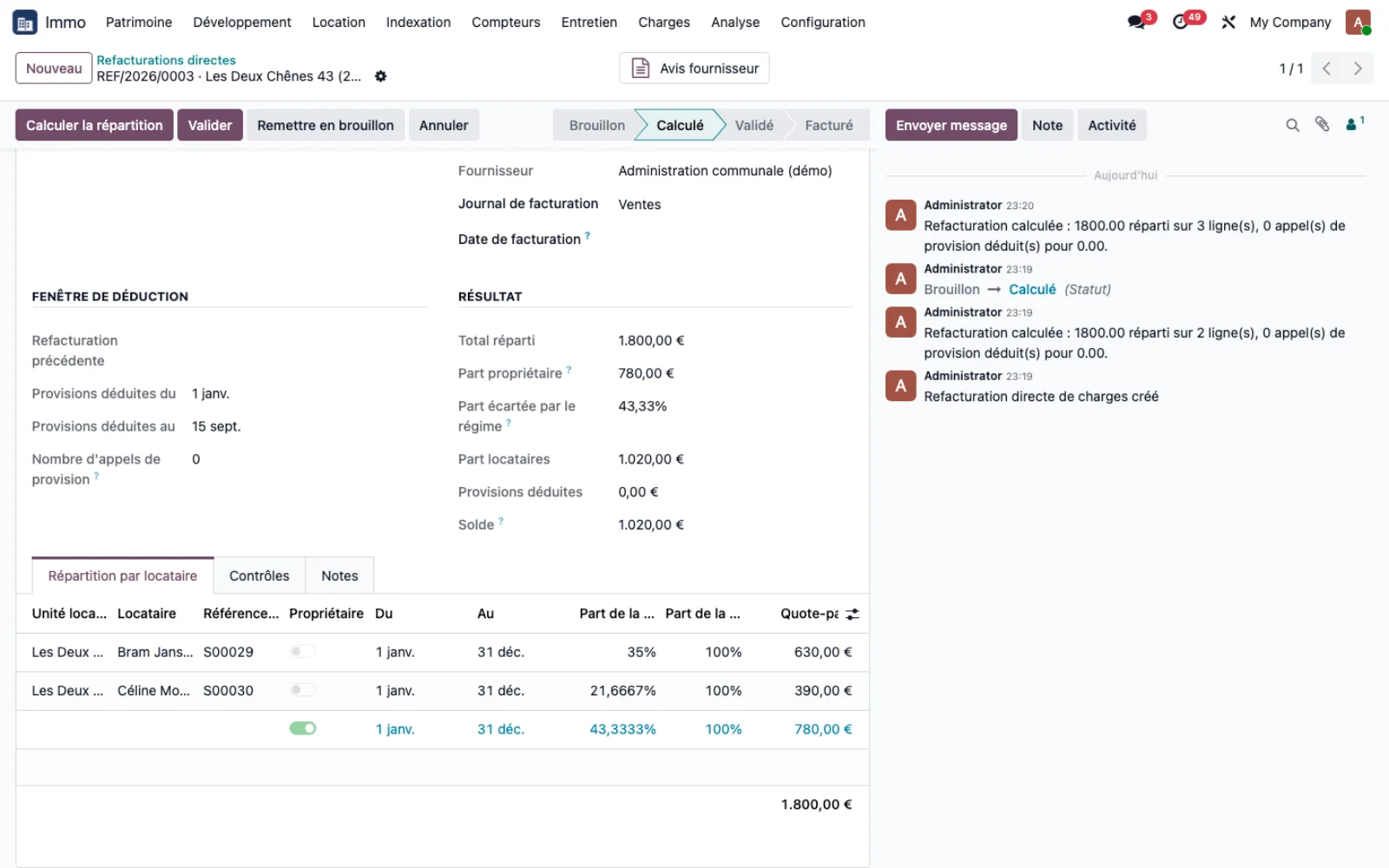
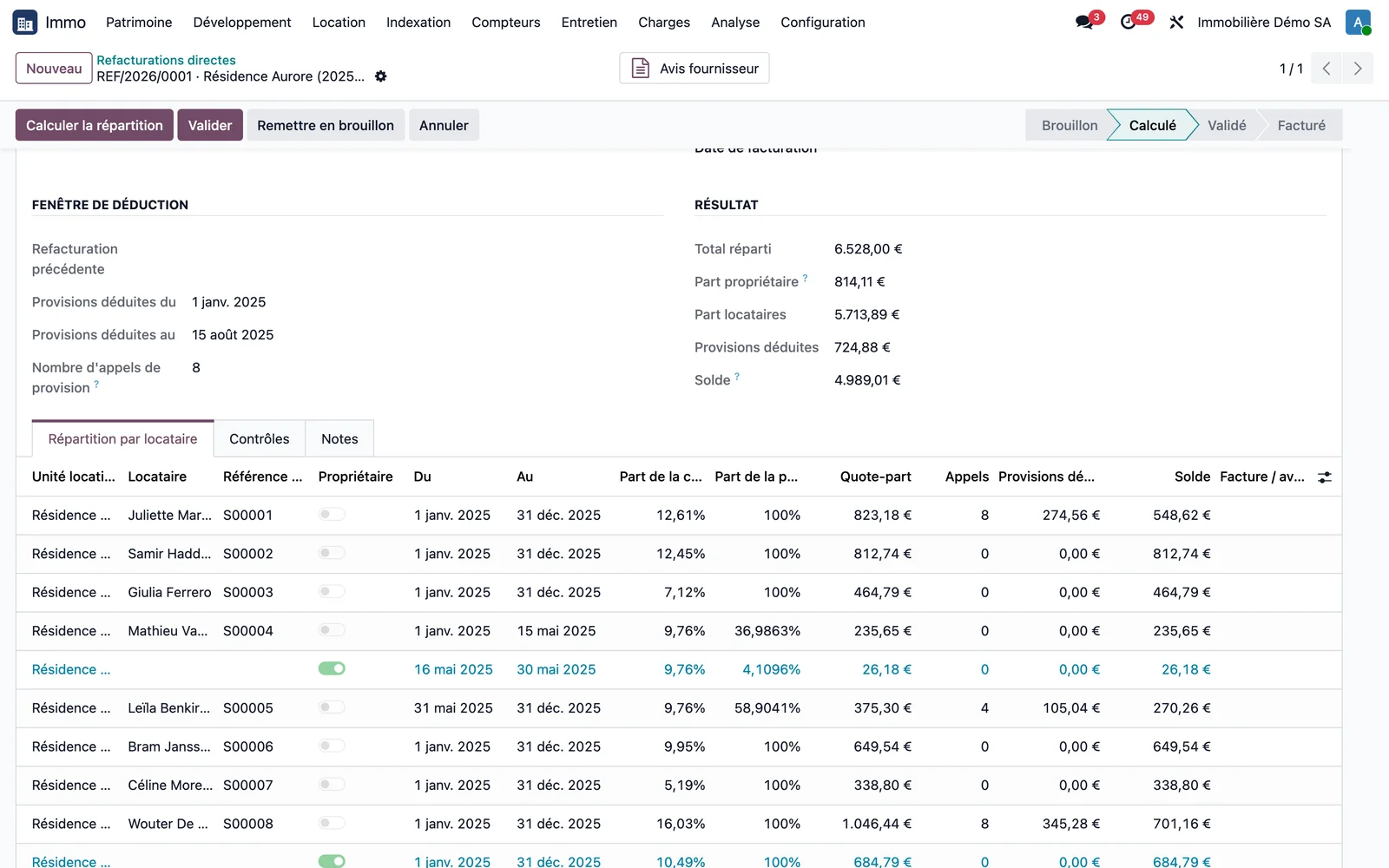
The recharge created allocates the notice according to the key, splits it between successive occupants, leaves vacancy with the owner and deducts the service charge advances called since the previous notice. An overlap of periods with the previous recharge is blocking.
Step 4 · Validate and invoice
Validate, then invoice: one invoice or credit note per tenant. All recharges can be found in Immo > Service charges > Direct recharges.
Part 3 · Management fees
Step 1 · Create the rule
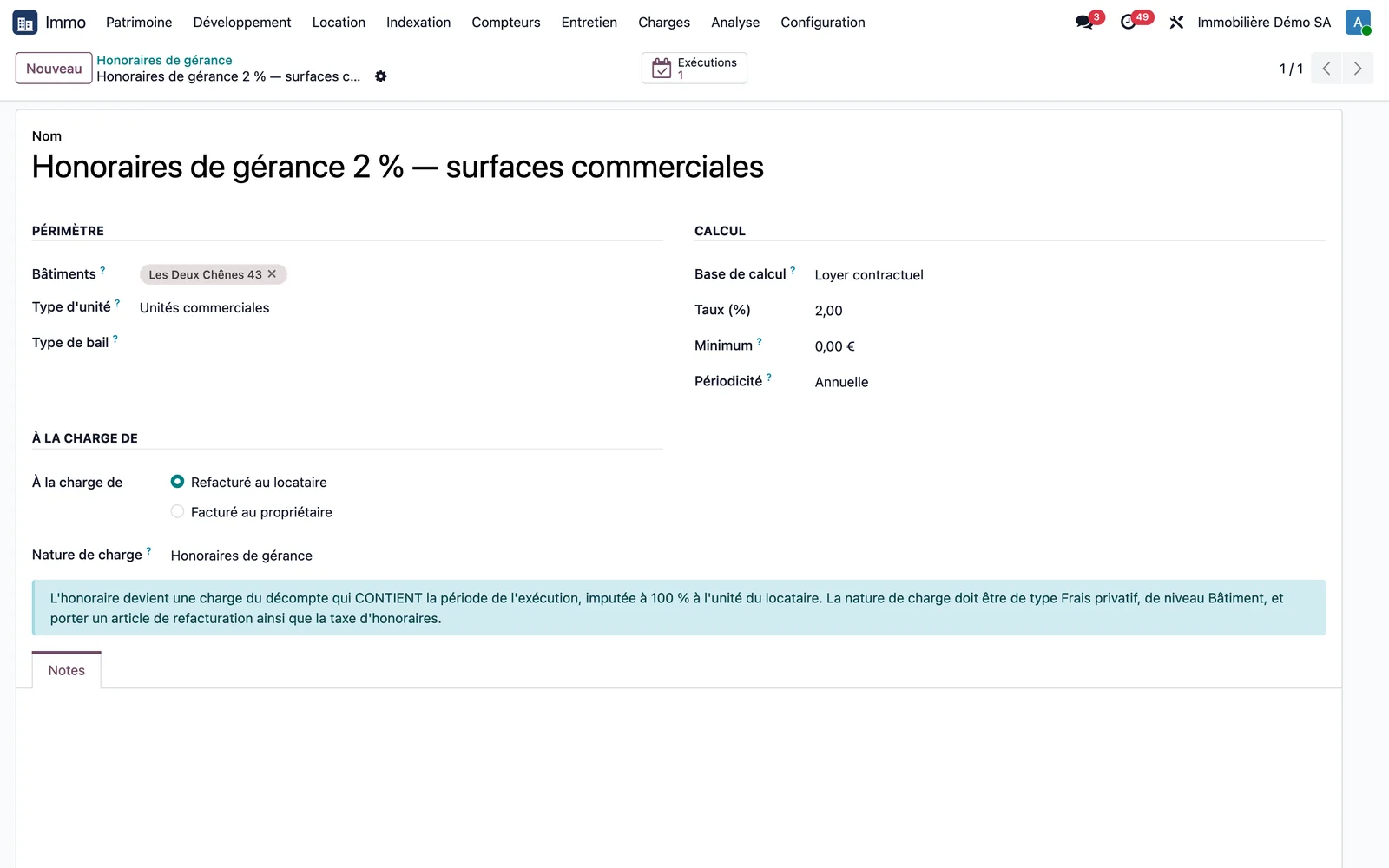
Open Immo > Service charges > Management fees. Define the scope (buildings, unit type, lease type), the basis (rent invoiced, contractual rent or allocated service charges), the rate or fixed amount, the minimum, the frequency and the target: tenant or owner.
Step 2 · Run over a period
Generate management fees creates a run. It calculates the basis, the rate and the amount lease by lease, then is validated and invoiced. With a tenant target, the management fee joins the statement that covers the period; with an owner target, it becomes an invoice from property management to the owning company.
Part 4 · Reserving a service charge for commercial units
Step 1 · Reserve the service charge type for a unit type
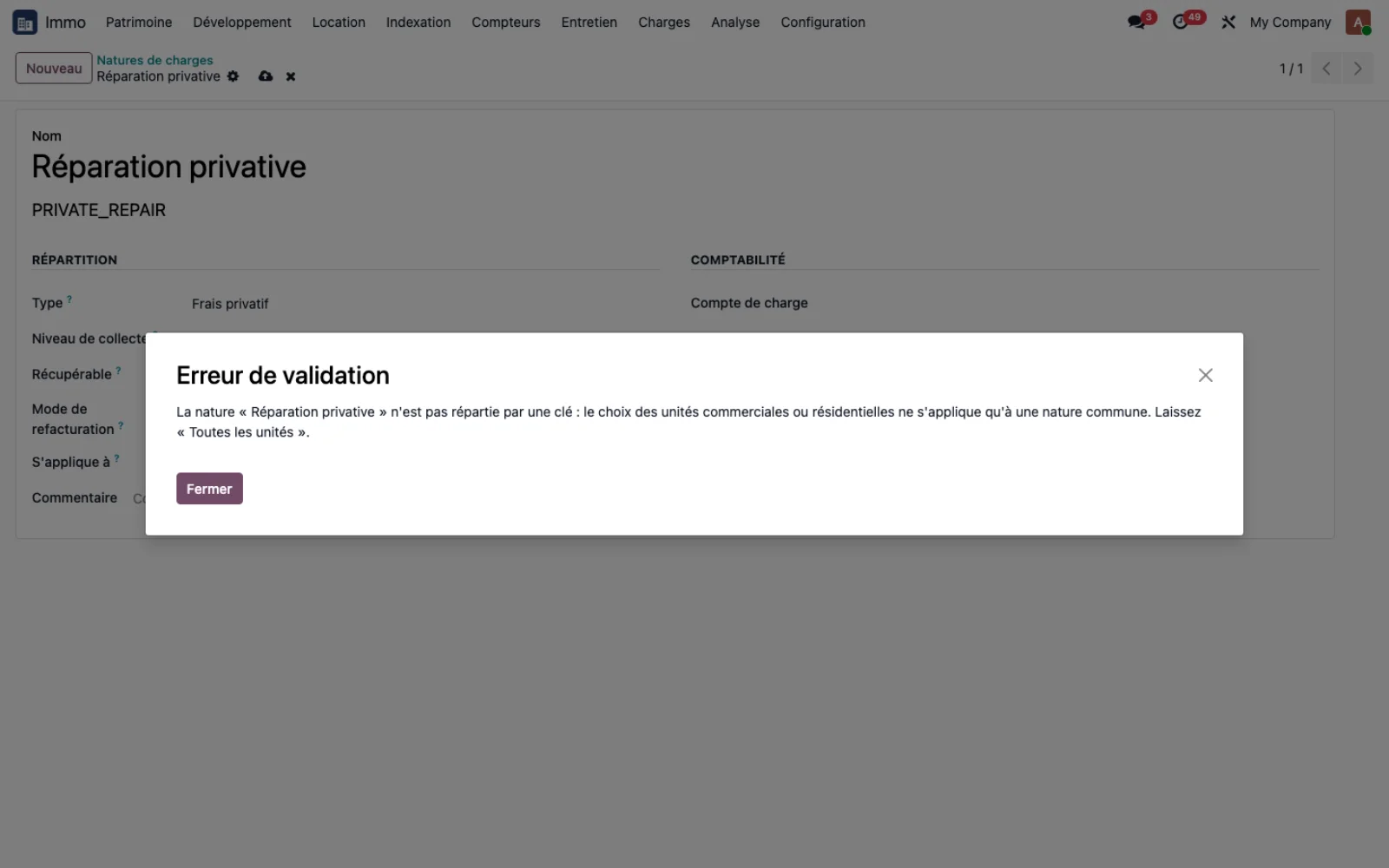
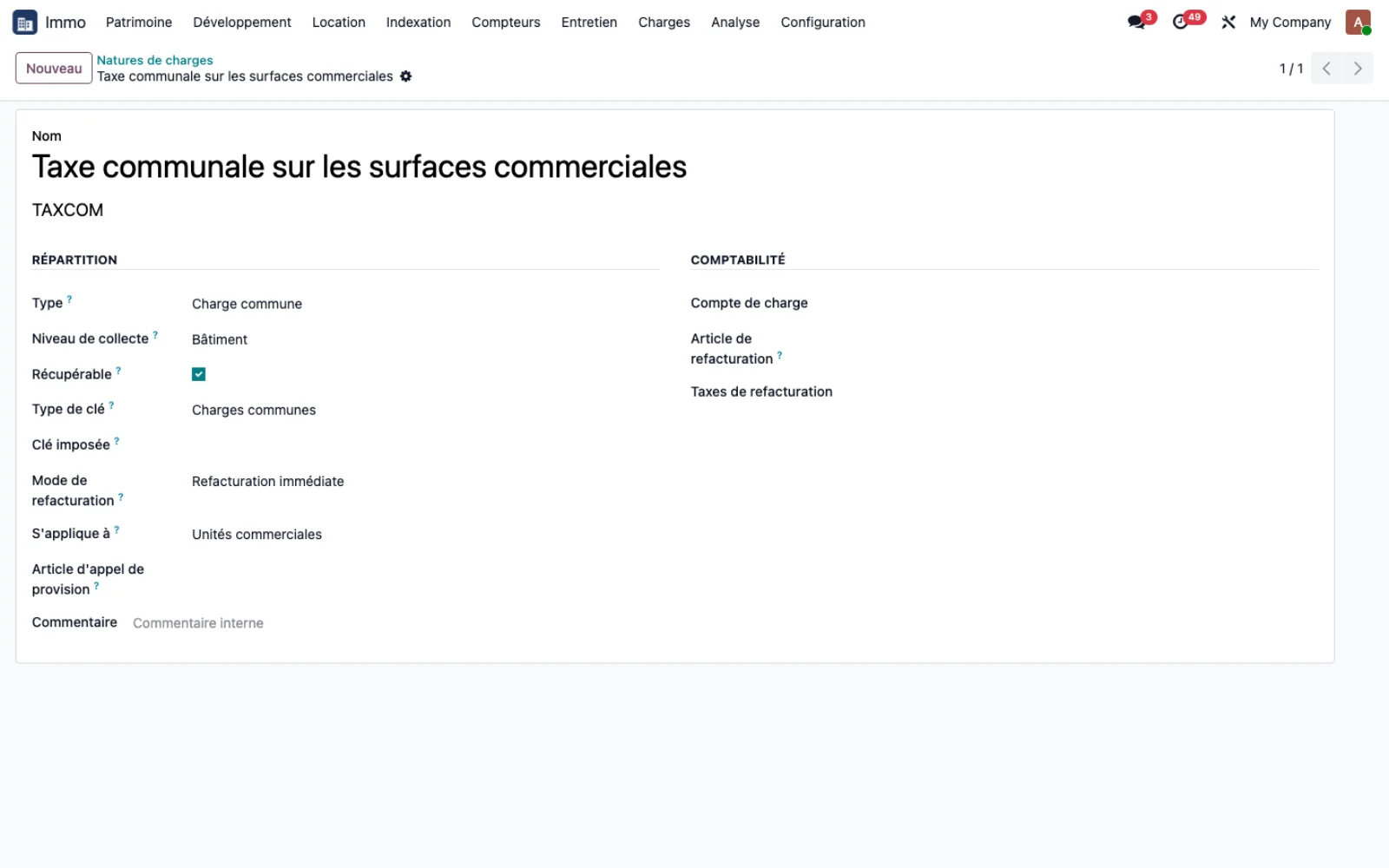
On the service charge type, in Immo > Configuration > Service charge types, the Applies to field accepts All units, Commercial units or Residential units. A private-cost or metered-consumption service charge type rejects this choice: it only applies to a communal service charge type.
Step 2 · Recharge and read the allocation
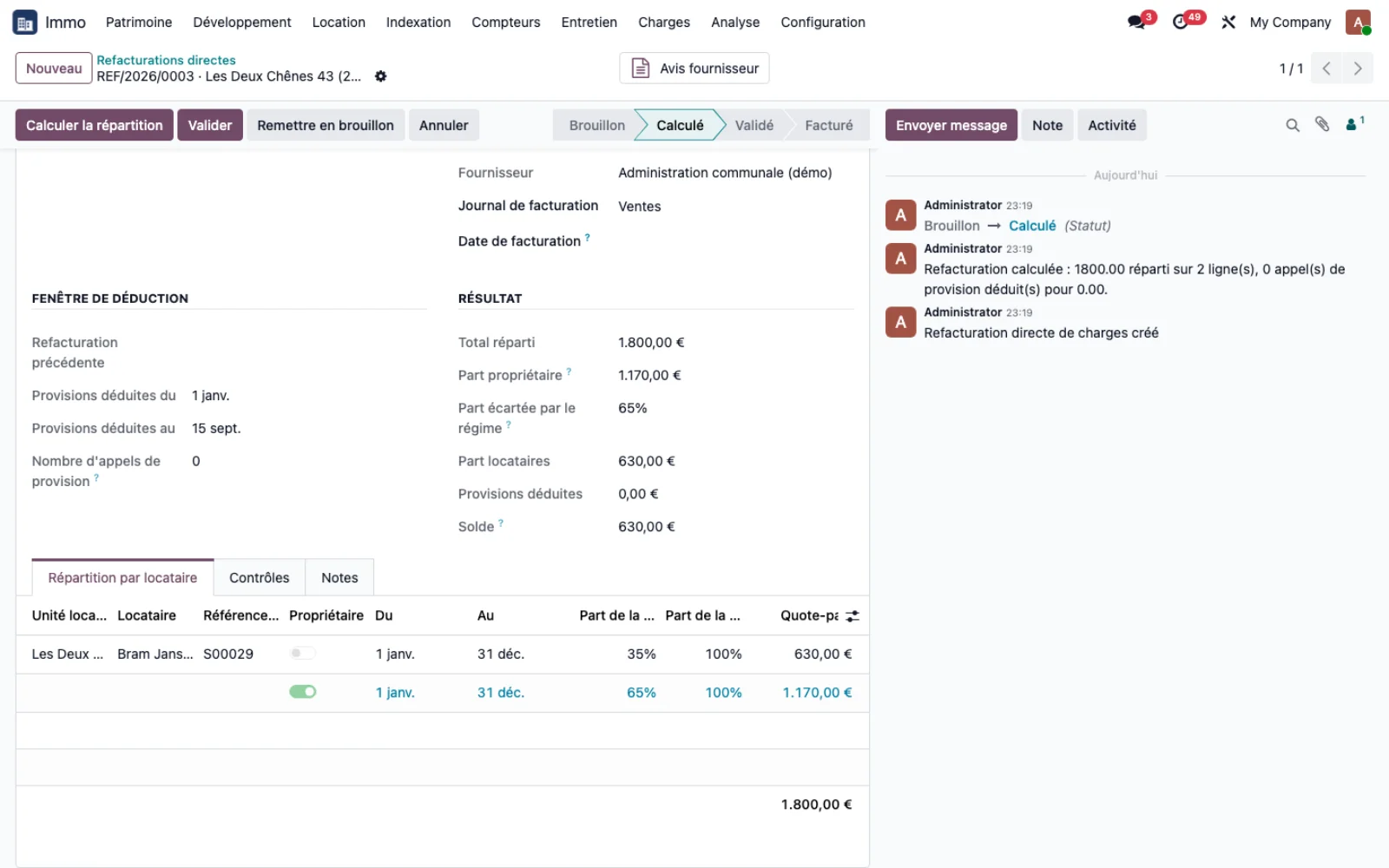
Enter the vendor notice as usual and click Recharge to tenants. The calculation excludes units outside the scope of the service charge type and shows, in the result, the share excluded by the regime alongside the owner's share and the tenants' share.
Step 3 · Read the regime check
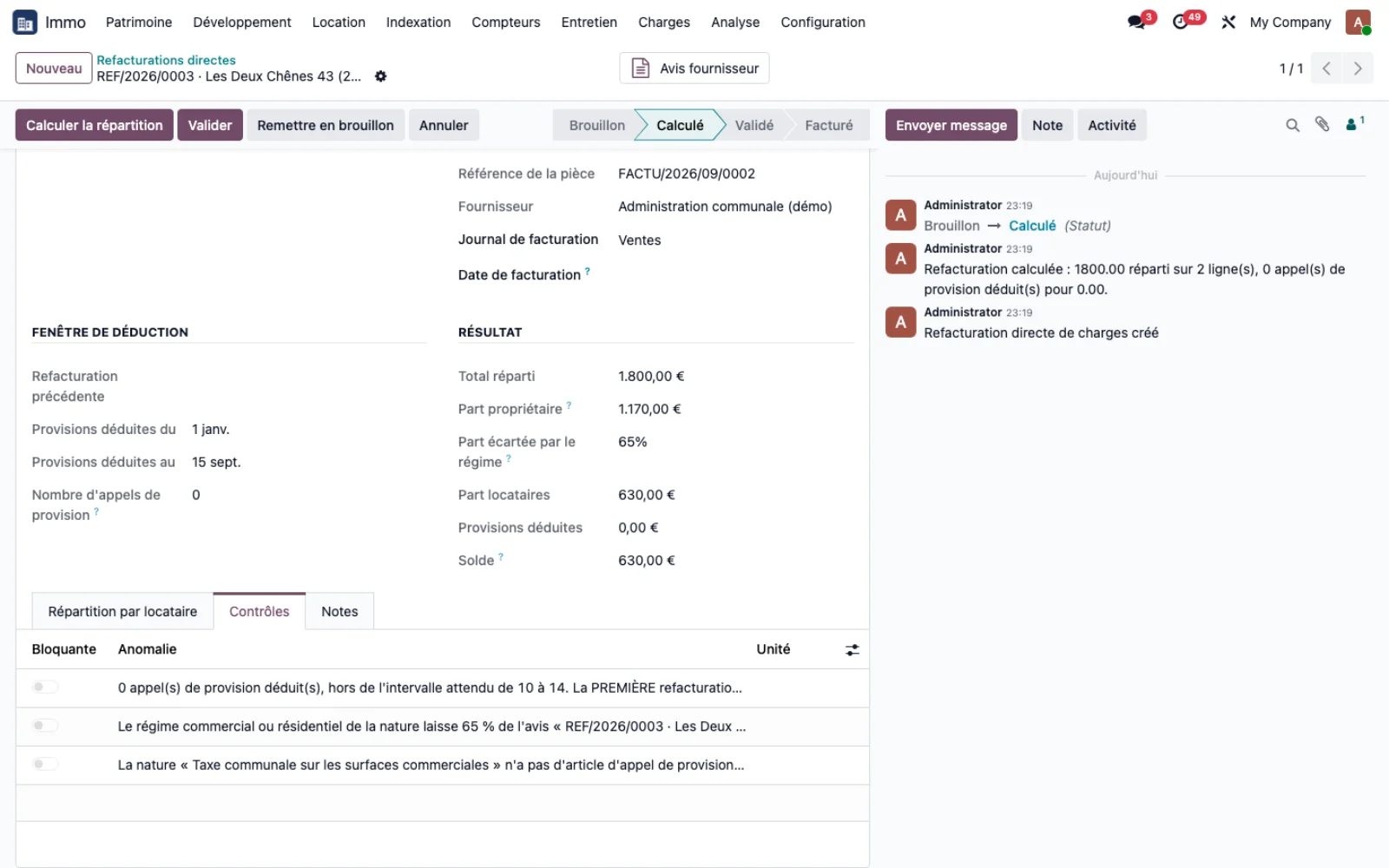
In the Checks tab, a non-blocking anomaly flags when the regime leaves more than 50% of the notice with the owner, so that a wrongly reserved service charge type can be spotted before invoicing. A vendor credit note triggers the same alert as the corrected notice.
Step 4 · Set a regime on a lease
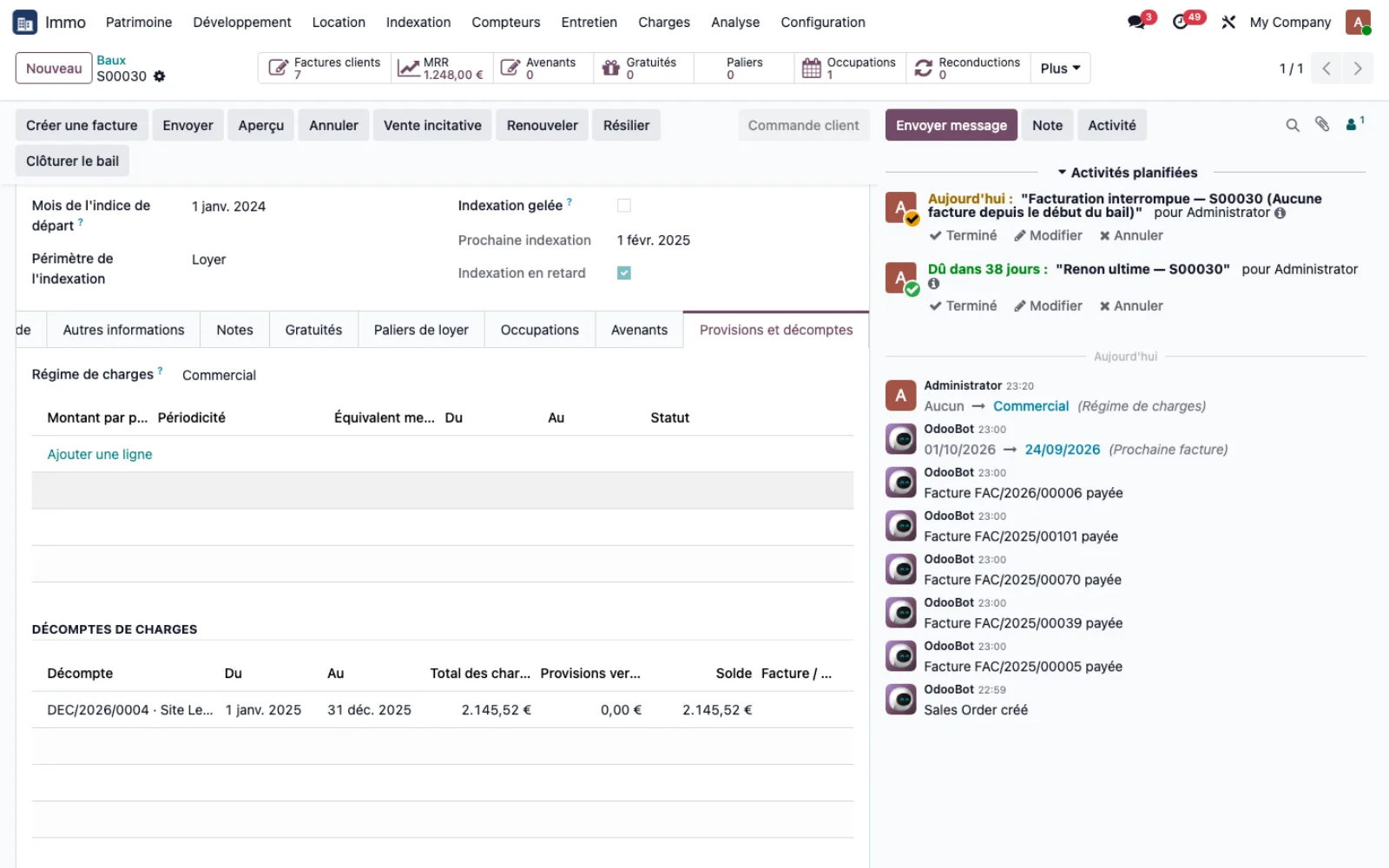
A lease can impose its own regime, independently of the unit type: on the lease's Service charge advances and statements page, the Service charge regime field accepts Commercial or Residential and takes precedence over the unit type. The same rule applies to the annual statement, the direct recharge and management fees.
Step 5 · Recalculate
A new calculation picks up the regime set on the lease: the professional-use unit receives its share, the other units keep theirs, and the total allocated remains equal to the notice.