Prerequisites: the immo_ged module installed. The menus are in the Immo app, under Documents.
Step 1 · Define a folder and its rights
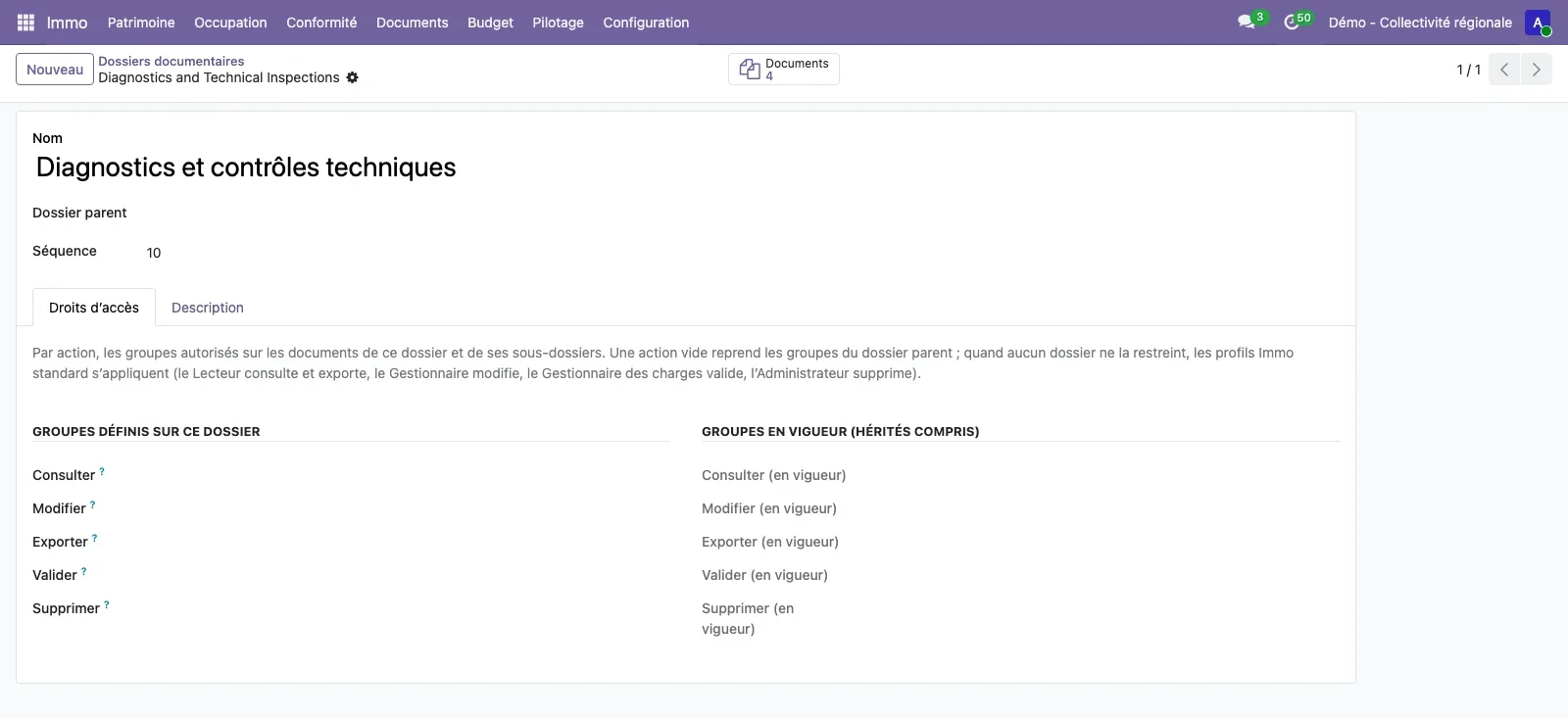
Open Configuration > Documents > Document folders and create a folder, optionally under a parent folder. The Access rights tab lists, for each action (view, edit, export, validate, delete), the groups allowed. An action left empty takes the groups of the parent folder; the right-hand column shows the effective groups, inheritance included.
Step 2 · Upload a document and its versions
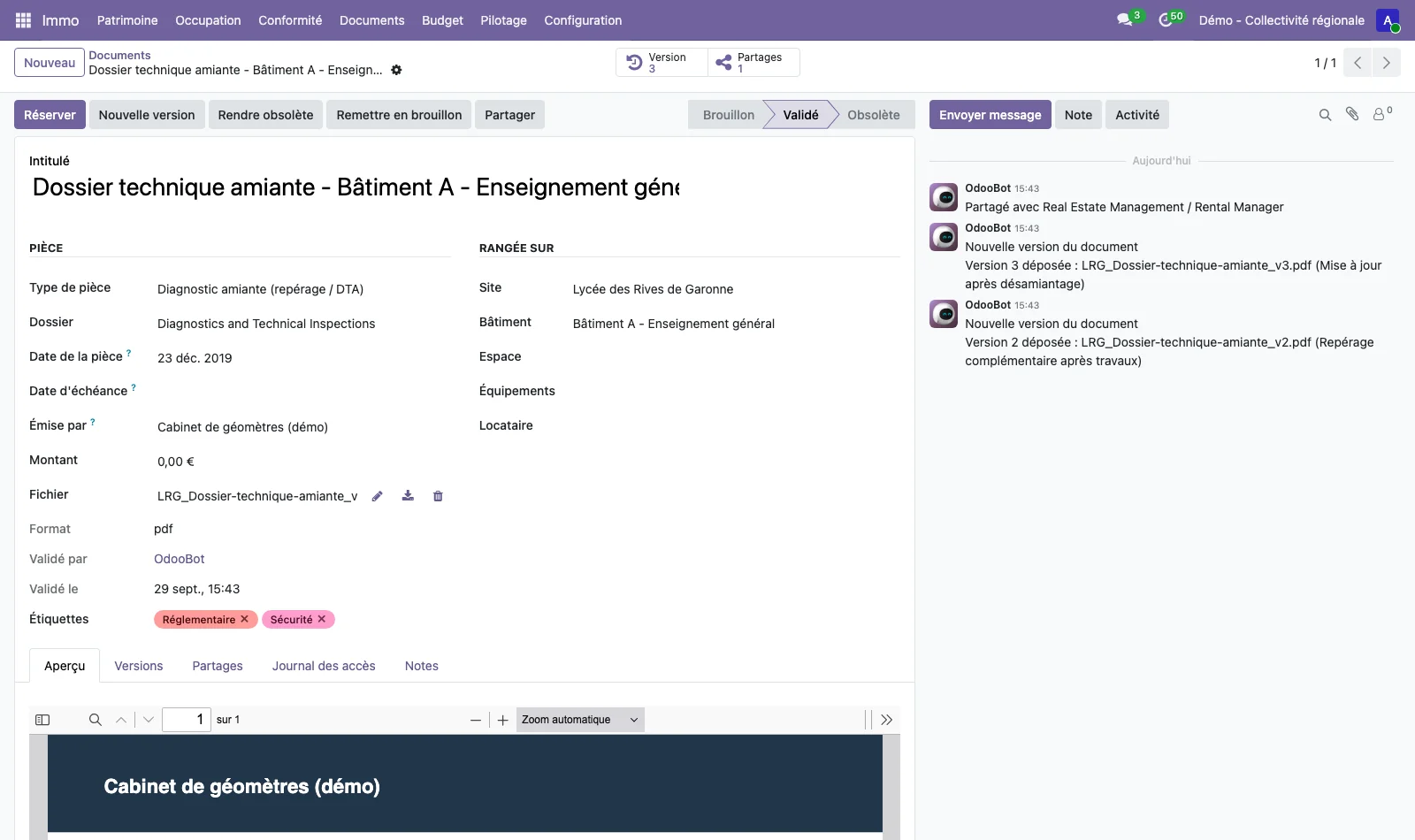
Open Documents > Documents and create a document: title, document type, folder, link (site, building, space, equipment, obligation or outstanding issue), document date, issuer, tags, file. The New version button uploads a more recent file without deleting the previous one; the Versions tab lists all versions, each of which can be downloaded.
Step 3 · Check out and validate
The Check out button prevents other users from editing the document or uploading a version; Release or Cancel checkout hands it back. The document moves from Draft to Validated with the validation button, then to Obsolete with Make obsolete; Reset to draft reopens it. Validation is restricted to the groups allowed to validate in the folder.
Step 4 · Share
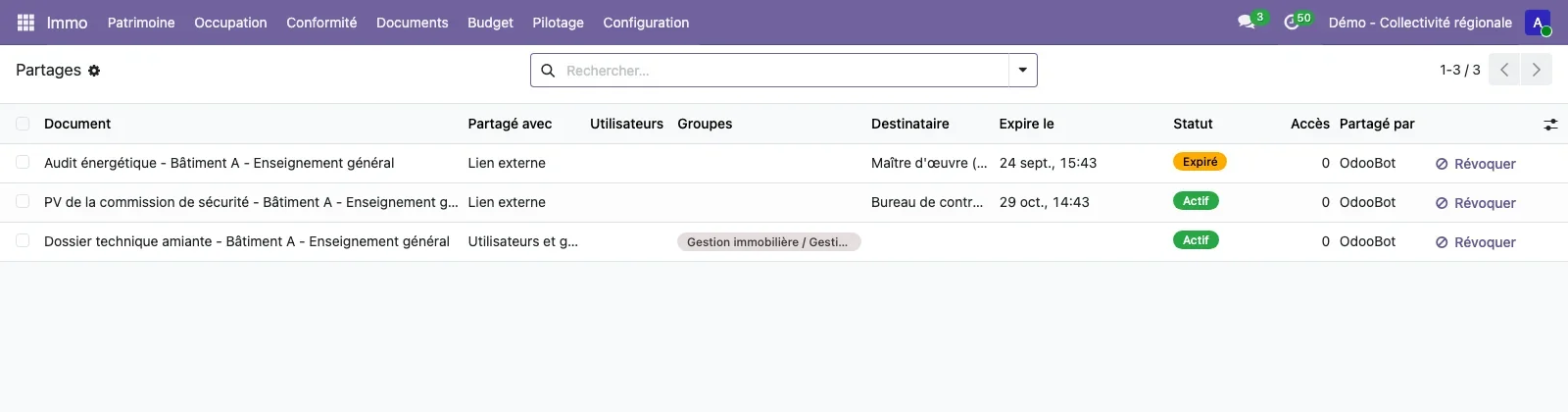
The Share button opens the sharing wizard: with users or groups, or through an external link with an expiry date. Documents > Shares lists the shares with their status and number of accesses, and the Revoke button cuts off a share immediately.
Step 5 · Import files in bulk
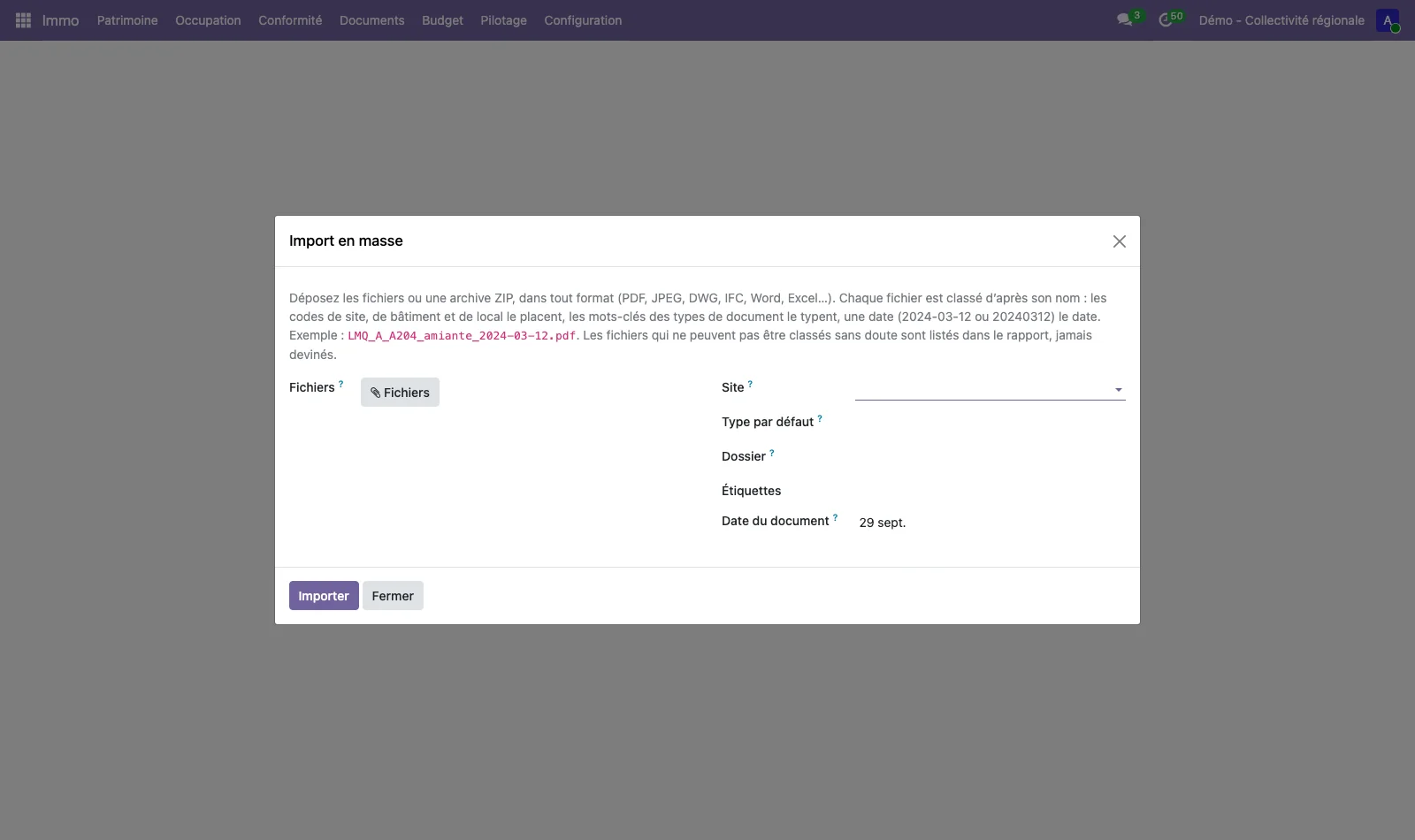
Open Documents > Bulk import, upload a ZIP archive or several files, and choose the site, default type, folder, tags and date. Name the files with the site, building and room codes, a keyword for the document type and a date: LRG_A_A206_amiante_2024-03-12.pdf is filed under the right room with the right type. Files that cannot be filed with certainty are listed in the report.
Step 6 · Search the documents
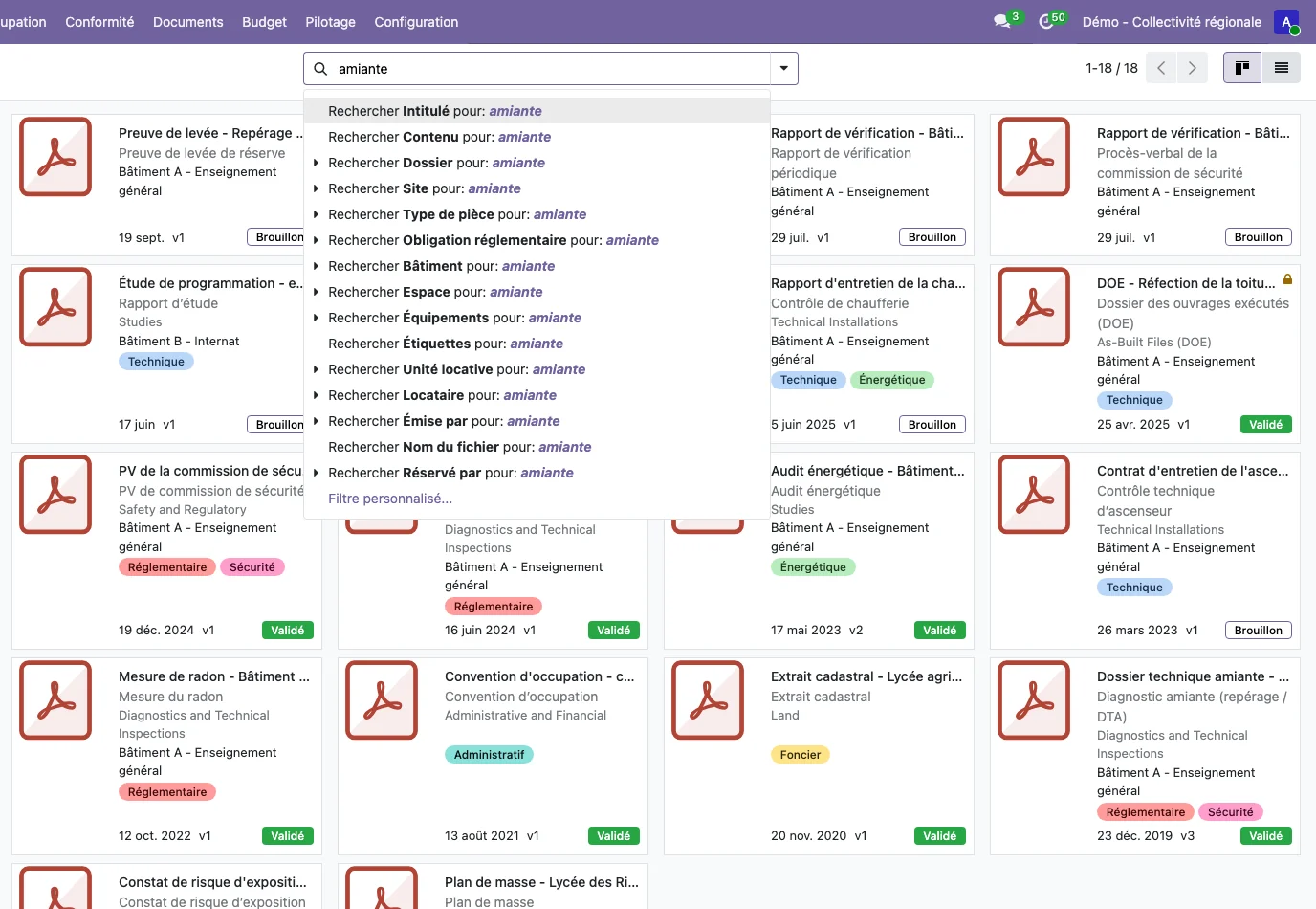
In Documents > Documents, type a word: the drop-down offers to search in the title, content, folder, site, document type, regulatory obligation, building, space, equipment or tags. Content search reads PDFs and Word, Excel and OpenDocument documents. The left-hand panel filters by folder, site and document type, and the view switches from cards to list.
Step 7 · Review the access log
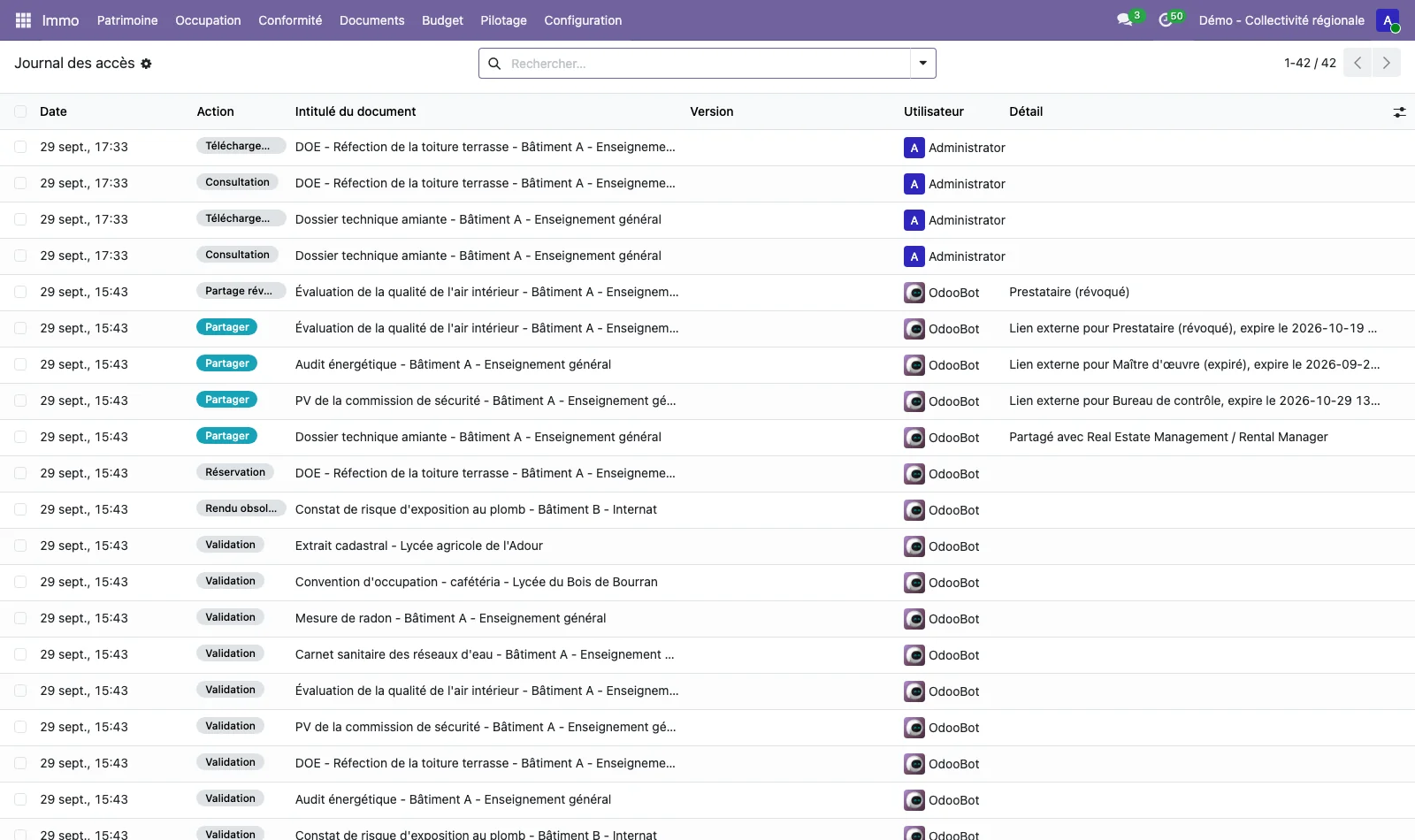
Documents > Access log lists views, downloads, new versions, shares, checkouts, validations and deletions, with the user and date. On a document record, the Access log tab limits the list to that document.